
Description
The DatabricksPartitionReceiver creates one or more InFile descriptions and one or more InFiles containing the generated data.
This Receiver is intended for use in Scenarios run by the GenRocket G-Partition engine to generate large amounts of data; thus, this parameter will be automatically set by the G-Partition engine.
Note: To learn more about the GenRocket G-Partition engine, click here.
In This Article
- Prerequisites
- Configure JDBC Connection
- Retrieving a Service Token from AWS Lambda
- Receiver Parameters
- Receiver's Attribute Property Keys
- How to use the DatabricksPartitionReceiver
Prerequisites
- Make sure a schema, table, and volume are already created.
- Ensure you have at least these permissions:
- Catalog/Schema navigation → USE CATALOG, USE SCHEMA
- Volume access → WRITE (upload), SELECT (read during copy)
- Table access → INSERT
Configure JDBC Connection
- Download the latest Databricks JDBC driver OSS and copy it into your ~/genrocket/lib folder.
- Create a Personal Access Token (follow the Databricks guide). If the Personal Access Token is disabled in your ORG, you can create a Service Principal and then use OAuth2 M2M authentication.
- Go to SQL Warehouse → Serverless Starter Warehouse → Connection details and grab the JDBC URL
URL Formatjdbc:databricks://<server-hostname>:<port>/<schema>;httpPath=<http-path>;[<setting1>=<value1>];...
*See this Databricks article for more information: https://docs.databricks.com/aws/en/integrations/jdbc-oss/configurejdbc:databricks:// The required prefix for the Databricks JDBC driver. <server-hostname> The hostname of your Databricks workspace's compute resource (cluster or SQL warehouse).
<port> The port value, which defaults to 443. <schema> The name of the default schema (optional). httpPath=<http-path> The HTTP path for the compute resource. setting1>=<value1>]; Additional connection properties, such as authentication settings.
. - Save the URL and token in your JDBC configuration file. An example is shown below. <> means the value needs to be filled in:
url=jdbc:databricks://<server-hostname>:443;httpPath=/sql/1.0/warehouses/<warehouse-id>;AuthMech=3;UID=token;PWD=<personal-access-token>
Note: Additional information about the JDBC Config File, connecting to Databricks with GenRocket Runtime, and connection troubleshooting can be found here: How do I connect to Databricks with GenRocket Runtime?
Retrieving a Service Token from AWS Lambda
If you need to retrieve a token from Lambda, then additional information must be included in the JSON Config file. The following additional parameters should be included:
- awsRegion - The AWS region where the resource is hosted (e.g., us-east-1).
- awsRole - IAM role used to access AWS services.
- awsLambdaFunctionName - The Lambda function to call.
Note: Additional parameters may be needed if you are using a vault, and more information can be found here: Vault Integration via JDBC AWS Secrets Manager
Receiver Parameters
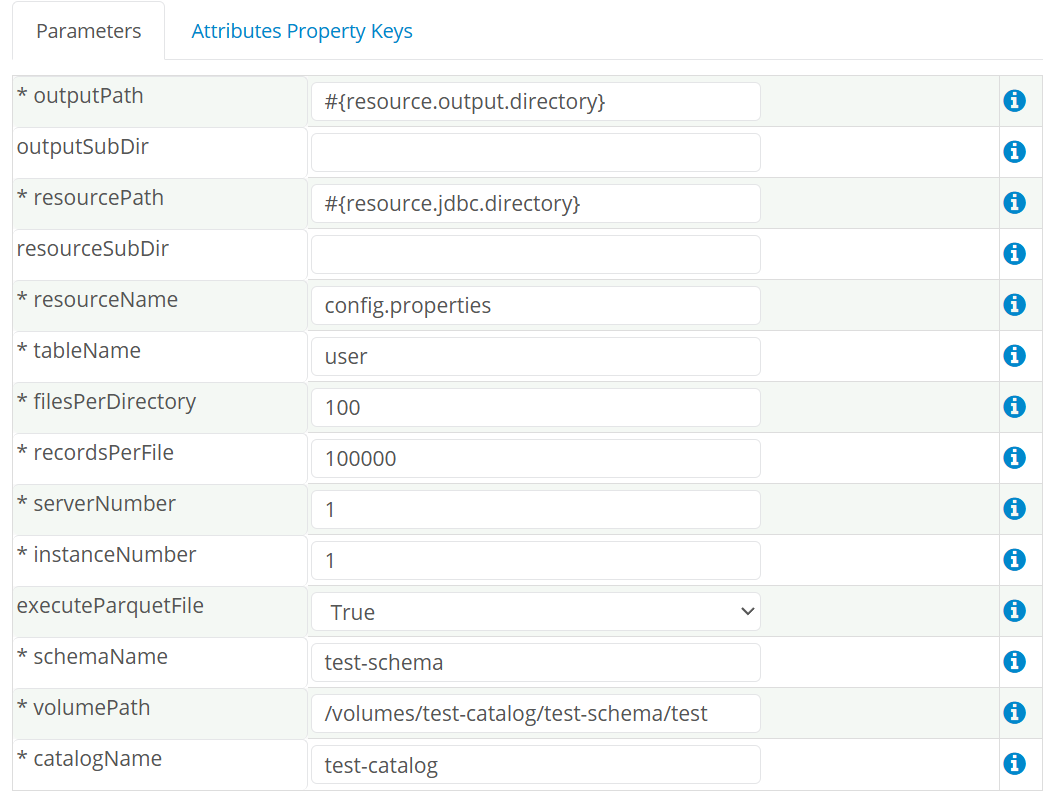
The following parameters can be defined for the DatabricksPartitionReceiver. Items with an asterisk (*) are required.
- outputPath* - Defines the path where the inFile descriptions and data files will be created.
- outputSubDir - Defines an optional subdirectory under the outputPath where generated data will be stored.
- resourcePath* - Defines the path there the resource file for JDBC connection properties exists.
- resourceSubDir - Defines an optional subdirectory under the resourcePath where the resource file for JDBC connection properties exists.
- resourceName* - Defines the name of the resource that contains the database connection information on a user's local machine.
- tableName* - Defines the name of the database table that will be loaded via one or more InFiles.
- filesPerDirectory* - Defines the number of files that will be created in each directory.
- recordsPerFile* - Defines the number of records that will be stored in each file.
- serverNumber* - Defines the server instance number where the Receiver will be running and helps the Receiver determine the output directory structure where it will deposit the generated data files. This Receiver is meant to be used in Scenarios that are run by the GenRocket GPartition engine to generate huge amounts of data; thus, this parameter will automatically be set by the GPartition engine.
- instanceNumber* - Defines the runtime instance number on a given server instance where the Receiver will be running and helps the Receiver determine the output directory structure where it will deposit the generated data files. This Receiver is meant to be used in Scenarios that are run by the GenRocket GPartition engine to generate huge amounts of data; thus, this parameter will automatically be set by the GPartition engine.
- executeParquetFile - Determines if the GenRocket Receiver should connect to the database and load the generated Parquet files. If 'false', it will not connect to the target database and just generate the files.
- schemaName* - Defines the name of the schema.
- volumePath* - Defines the path to the volume in Databricks environment to store the files.
- catalogName* - Defines the name of the catalog within Databricks database.
Receiver's Attribute Property Keys
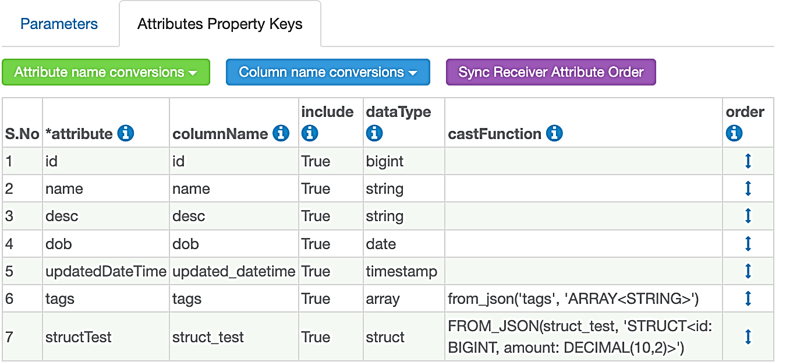
The Receiver defines four property keys that can be modified on any of its associated Domain Attributes:
- columnName - Specifies the table column name as it is in the actual database (e.g., first_name, last_name). This is the name it will match on.
- include - Determines if the Attribute will be included in the InFile data dump.
- dataType - Databricks data type.
- caseFunction - Case function to cast the input to a specific data type.
How to use the DatabricksPartitionReceiver
- Make sure the appropriate permissions have been granted (see the prerequisites section).
- Create the JDBC Config File and place it in the appropriate location (varies per user).
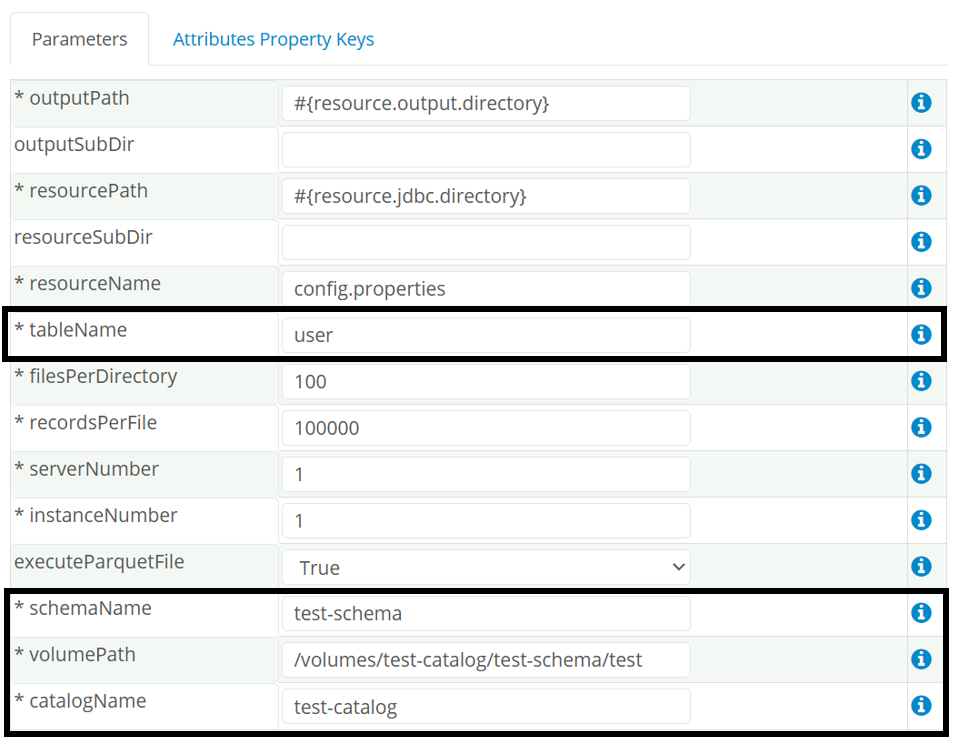
- Configure the required Receiver parameters and save your changes.
- Specifically, the tableName , schemaName, catalogName, and volumePath.
- An example is shown below:
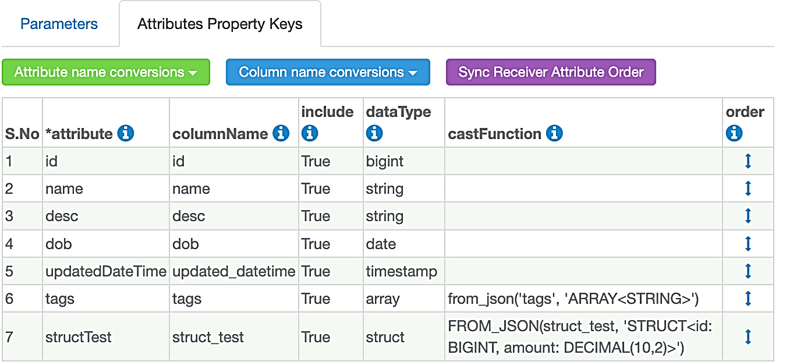
- Configure the Receiver Attribute's Property Keys accordingly.
- Make sure to define the correct datatype and castFunction for each attribute under each property key.
- Generate your data by running the Scenario.