
Overview
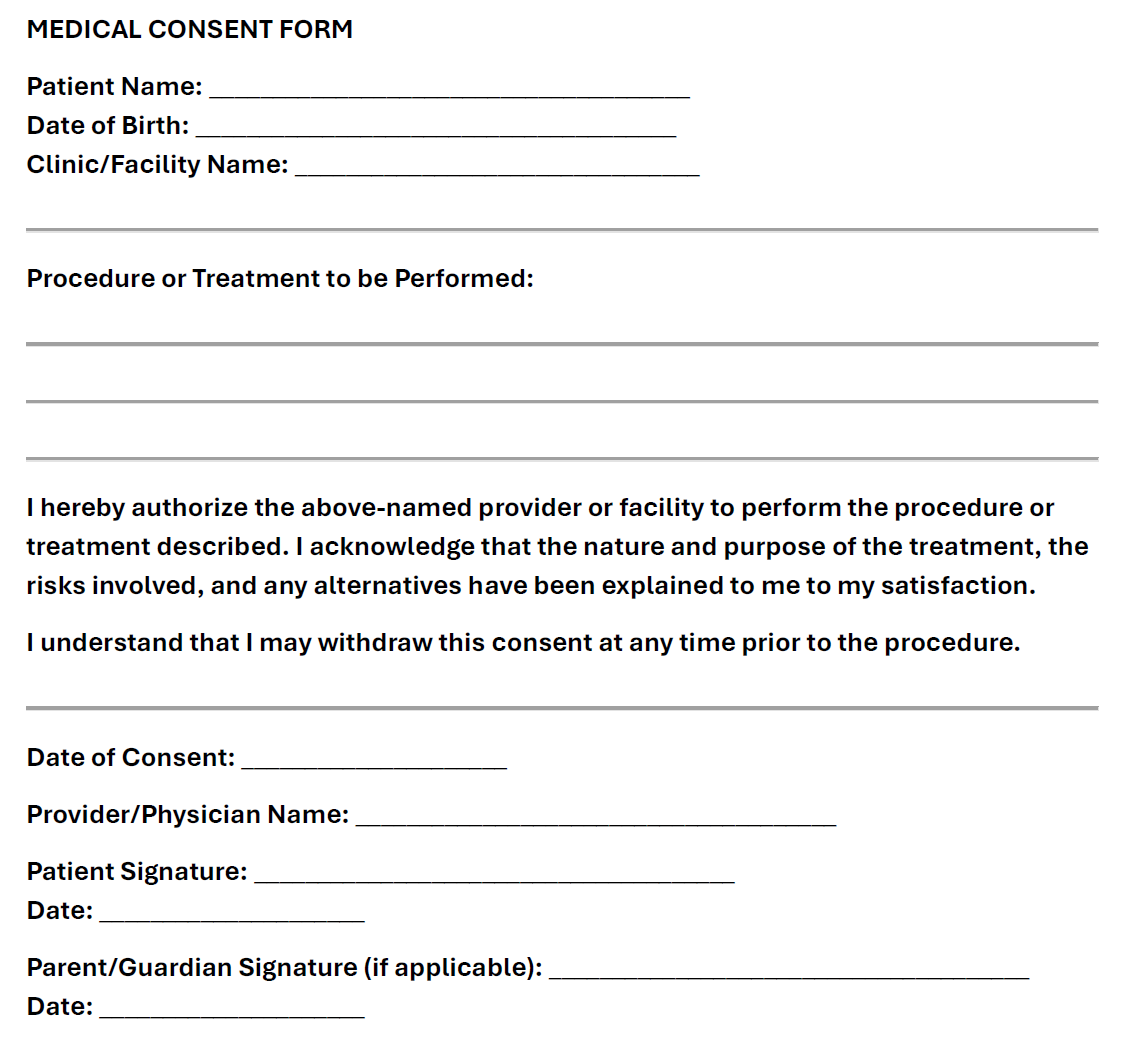
This article walks you through importing a Medical Consent Form PDF with the Unstructured Data Accelerator (UDA), then generating consent forms with synthetic data values and signatures. The consent form used for this example has also been attached at the bottom of this article.
Objective
Generate 10 medical consent forms with only synthetic test data and signatures. The attached consent form will be used for this example.
Please note that it is recommended to use a form that contains data. This ensures that automatic variables can be created for each field. When no data is available, each variable must be manually created in the template.
This example shows how manual variables can be used to add data and signatures to forms.
Note: Specific limitations apply when importing a template and generating PDF documents. They can be found in this article: Unstructured Data Accelerator (UDA) - PDF Document Generation.
In This Article
- Prerequisites
- Step 1 - Import the PDF to create a Template
- Step 2 - Customize the Template using the Template Editor
- Step 3 - Export the Template to set up the Project
- Step 4 - Review the Project
- Step 5 - Perform Generator Tuning
- Step 6 - Change the GrRoot Domain loopCount
- Step 7 - Download the Required Files
- Step 8 - Generate PDF Documents
- Sample Output
- Next Steps
Prerequisites
- Verify the source PDF meets defined requirements - UDA currently only supports digital PDF source files. To see the full list of requirements and limitations, please take a moment to view the UDA Overview page.
- Complete the initial environment setup - All prerequisites are covered in this article, including links to install the GenRocket Runtime: UDA Environment Initial Setup Steps.
Step 1 - Import the PDF to create a Template
- Create or select a Project and Project Version.
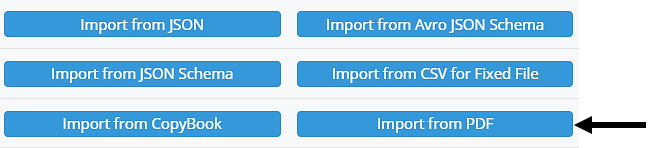
- Open the New Domain menu and select Import from PDF.
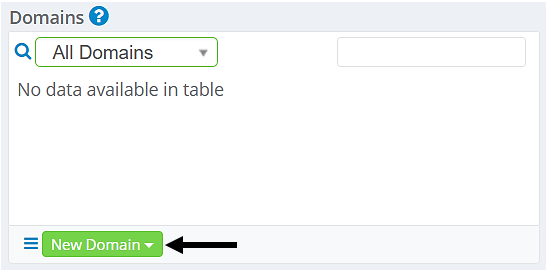
- Browse and select the source PDF file, then save.
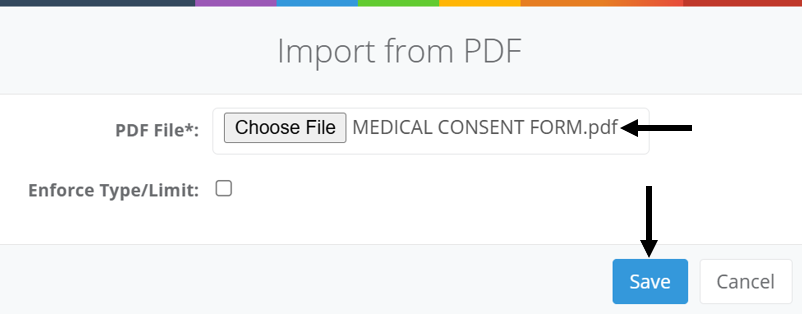
- Wait for the file to process. The template will be created automatically.
Note: For step-by-step instructions with images, please see this page: UDA Template Editor - Import a File and Customize the PDF Template for Project Setup.
Step 2 - Customize the Template using the Template Editor
Fields (headers and data values) will be automatically extracted from the source file and included in the template as a label (orange) or automatic variable (blue). In some instances, the template may need to be customized before it is used to set up the Project. Here are a couple of examples:
- If a field is empty, a manual variable must be added to generate synthetic data (e.g., name, address, signature).
- A placeholder for an image, QR code, or barcode needs to be added to the template.
- A manual variable needs to be added to generate one or more signatures on each PDF.
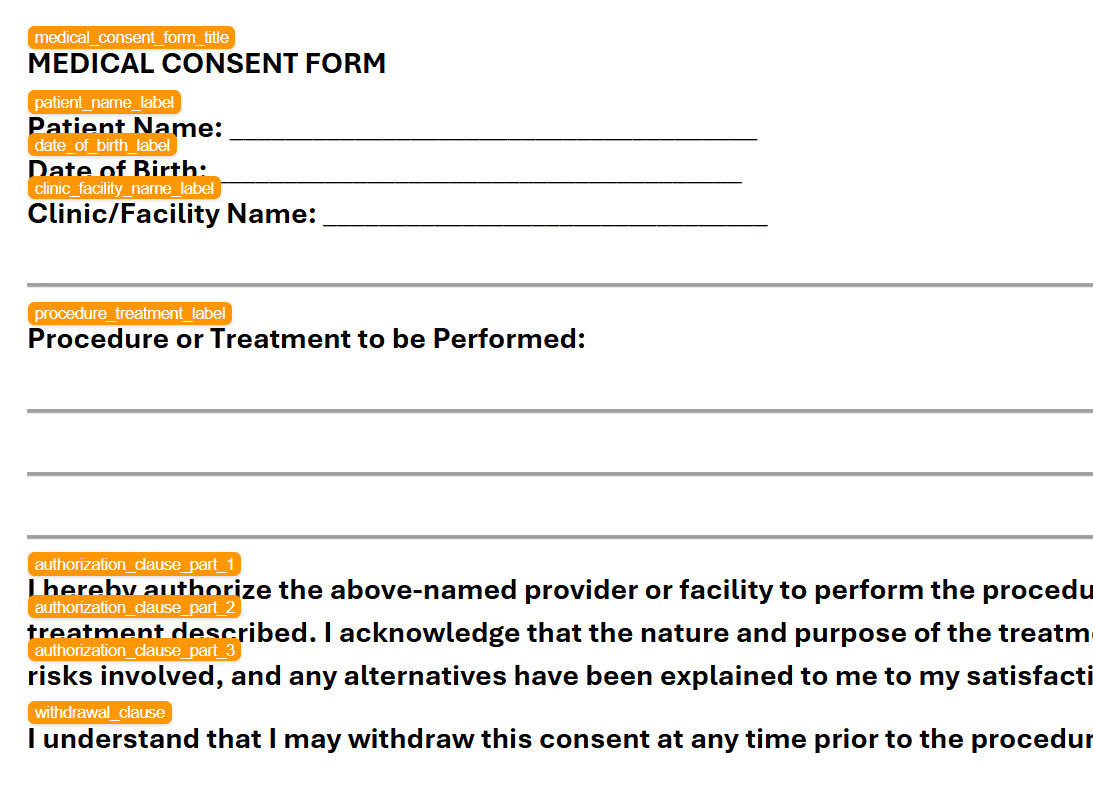
Note: For this example, a few simple changes will be made. The labels will not be altered, which means that each will be an Attribute for the Domain. You can save changes and return as needed, as long as the template has not been exported. Once exported, no further changes can be made to the template.
Change 1 - Add Manual Variables for Empty Fields
A quick list of steps will be provided here. The full instructions are available here: UDA Template Editor - Import & Customize PDF for Project Setup.
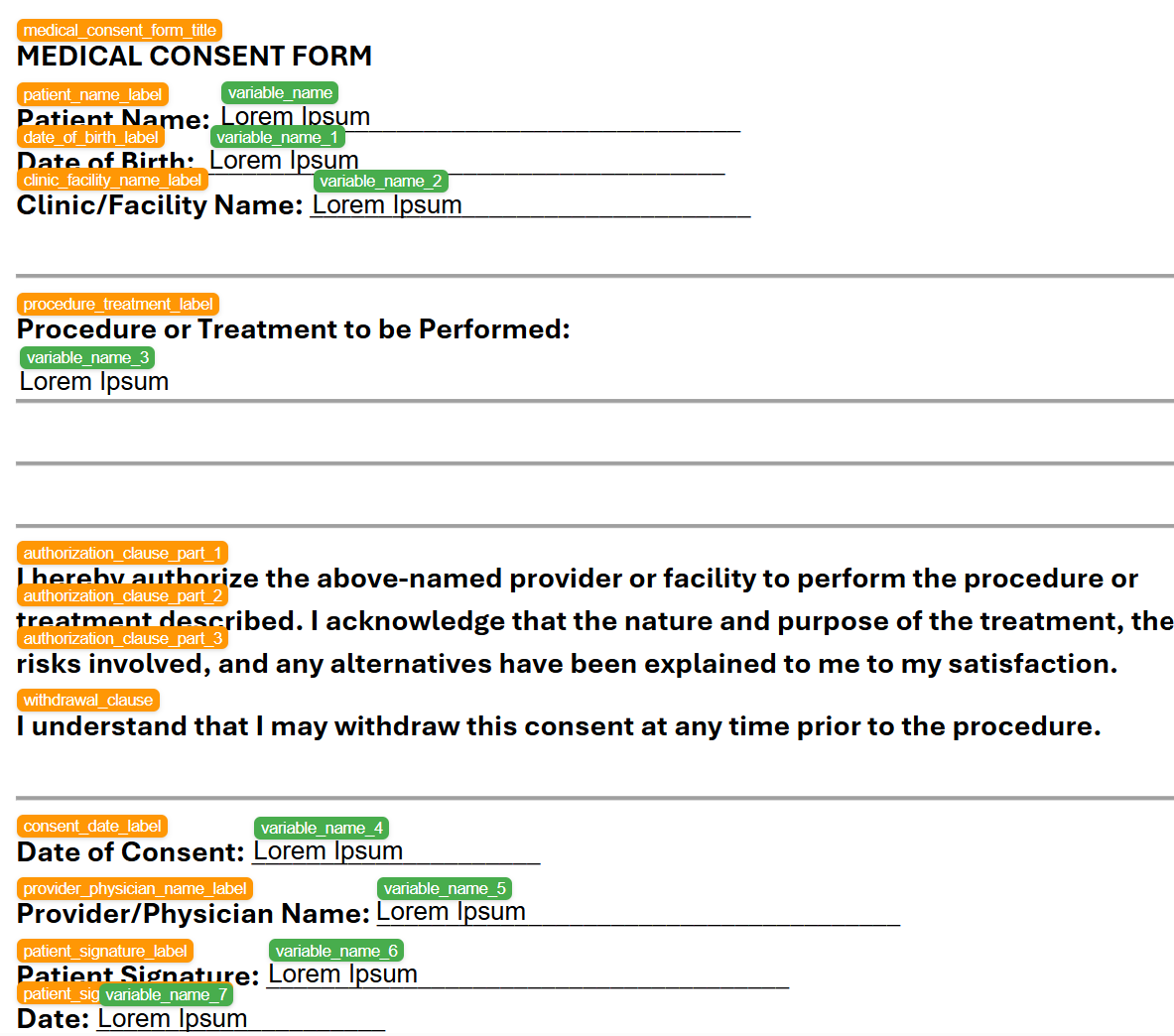
- Right-click on the template in any location and add a Text Variable for each empty field.
- Drag each variable to its correct field position or use arrow keys to adjust.
- Repeat these steps for each empty field.
- The first added variable will have a default name of "variable_name". Each added variable will have a default value of "Lorem Ipsum".
- As more variables are added, they will have this format "variable_name_1," and the number will increase by 1 for each new one.
- Select Manual Variables and Edit.
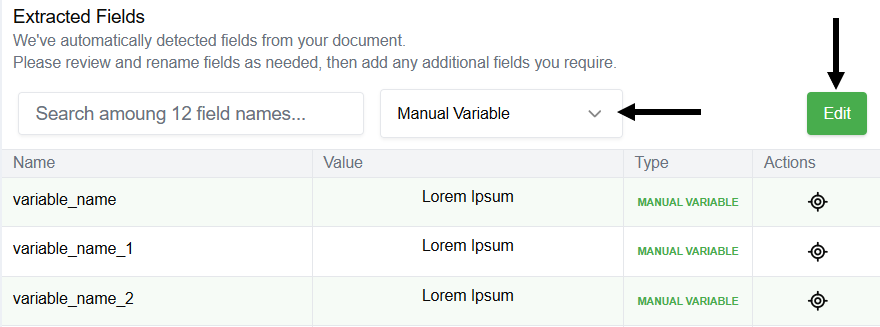
- The Name and Value (Optional) for each text variable must to be modified.
- Name is recommended because it ensures each field (i.e., Attribute) is easy identify within the created Project.
- Value is optional because it only changes how information is displayed within the template preview.
- For each variable, select the Name or Value field to make changes.
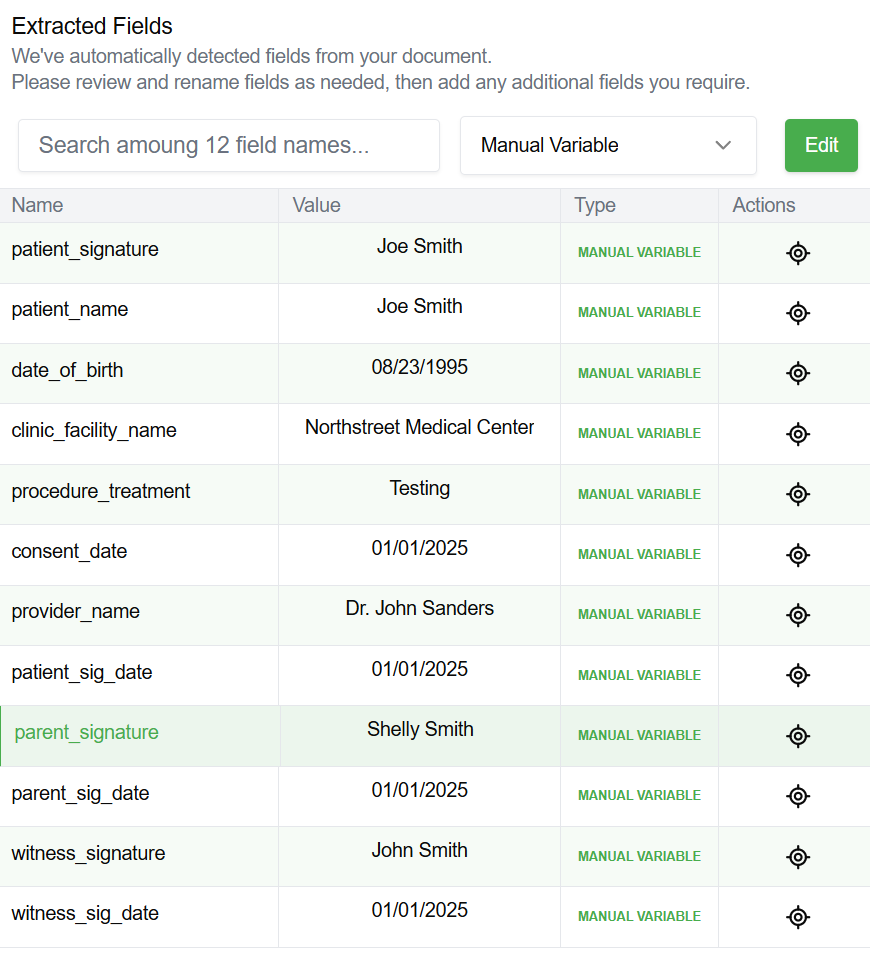
- Once finished, select Apply to save the change. The manual variable will appear as shown in the Extracted fields section of the Template Editor below.
They will appear as shown below in the created template: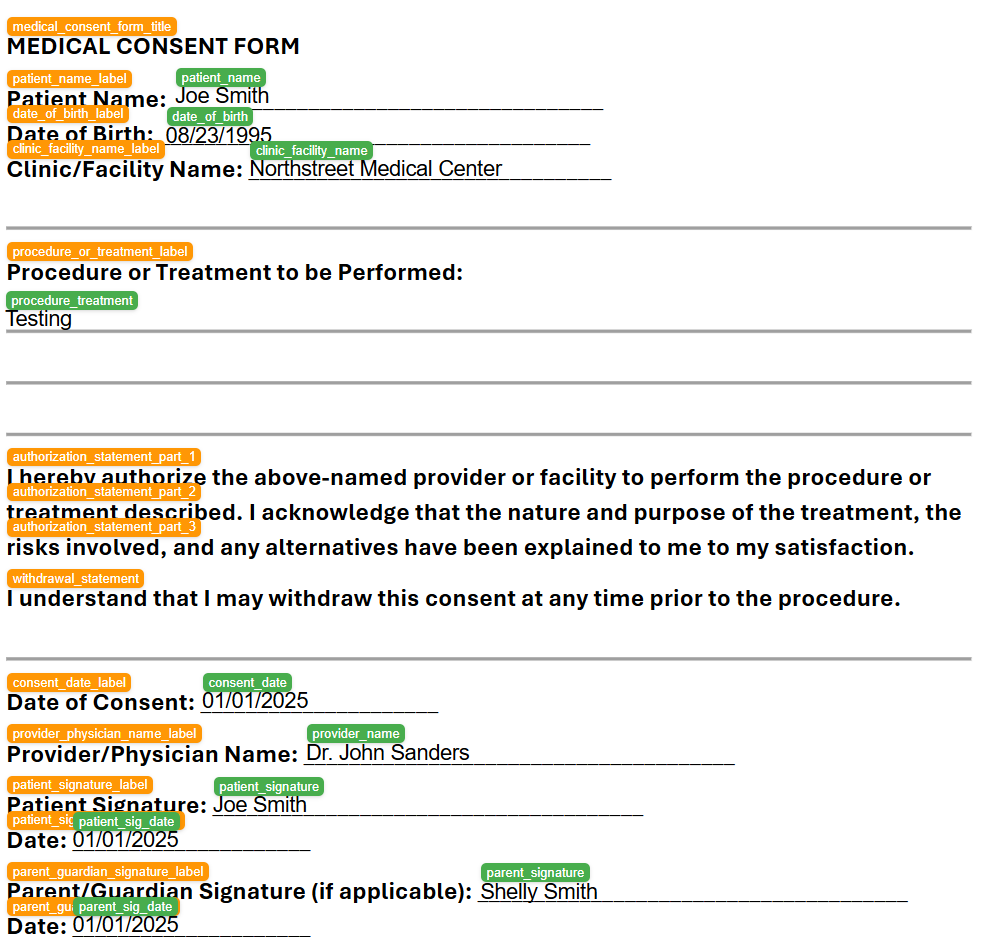
Change 2 - Make Additional Configuration Changes for Signature Variables
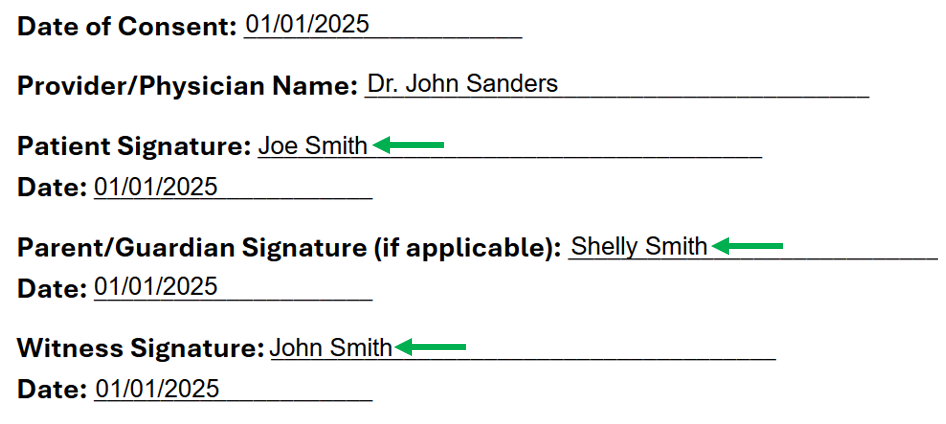
Important: Make sure you have downloaded the fonts folder and placed it in your output directory. A step-by-step guide can be found here for the fonts folder and adding text variables for signatures: UDA PDF Template - How to Make Text Look Like a Signature.
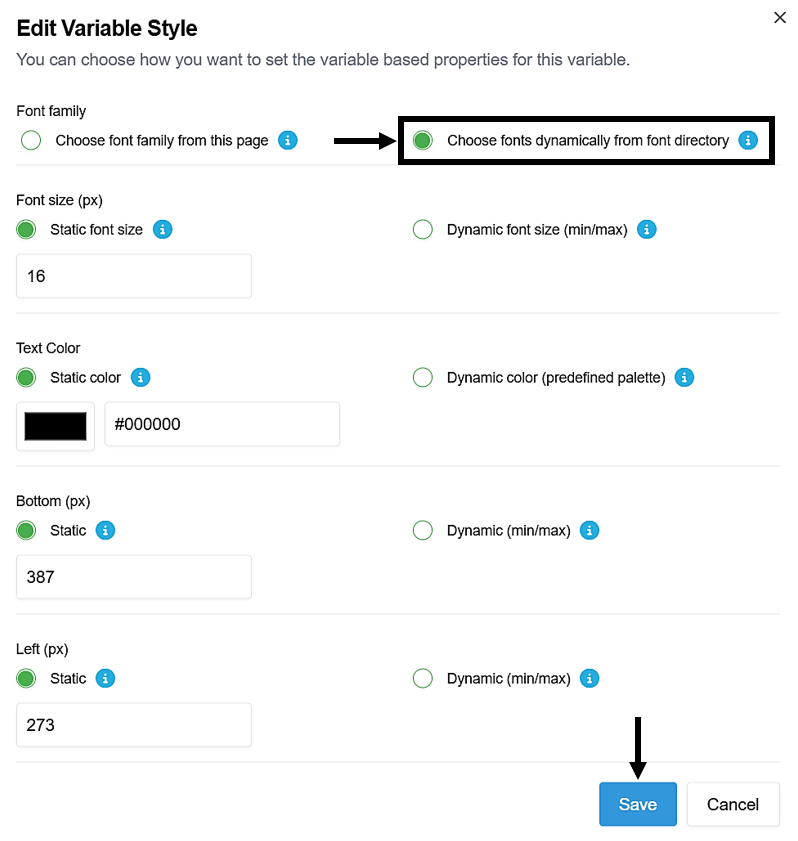
To alter font selection for signatures, complete these steps:
- Right-click on the signature text variable within the template.
- Select Choose fonts dynamically from text directory.
- Make any additional changes, such as altering the font size or color.
- Then select Save.
Step 3 - Export the Template to set up the Project
Export the template to set up the Project:
- Select Export at the top of the Template Editor.
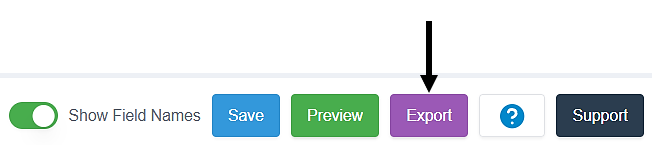
- Three options are provided: Cancel, Save Instead, or Export.
- After exporting, you cannot make further changes to the template.
- Select Export to continue.
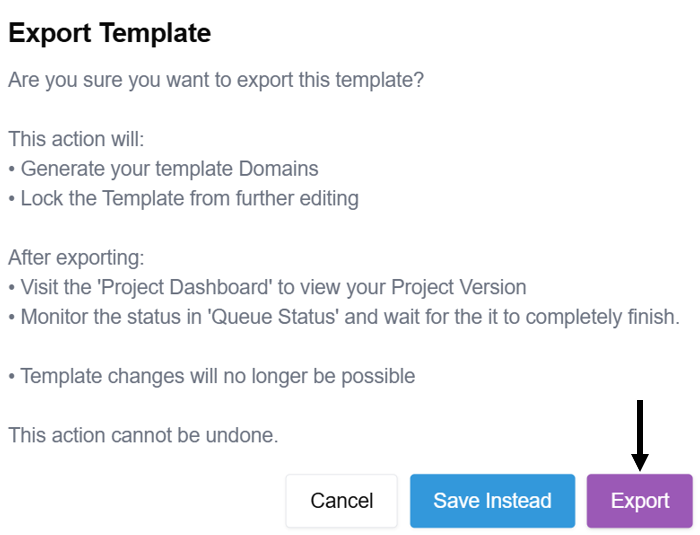
- Go to the Project Dashboard and wait for the setup to finish.

Step 4 - Review the Project
Verify that your Project has been properly set up. Each page should have a Domain. Labels and Variables will be Attributes within the appropriate page Domain. A table discussing everything that should be set up is provided directly after the image below.
Note: The Project for the source PDF Medical Consent Form is shown below. Please note that the Project will differ based on the source file and may take a few minutes to set up, depending on the template size.
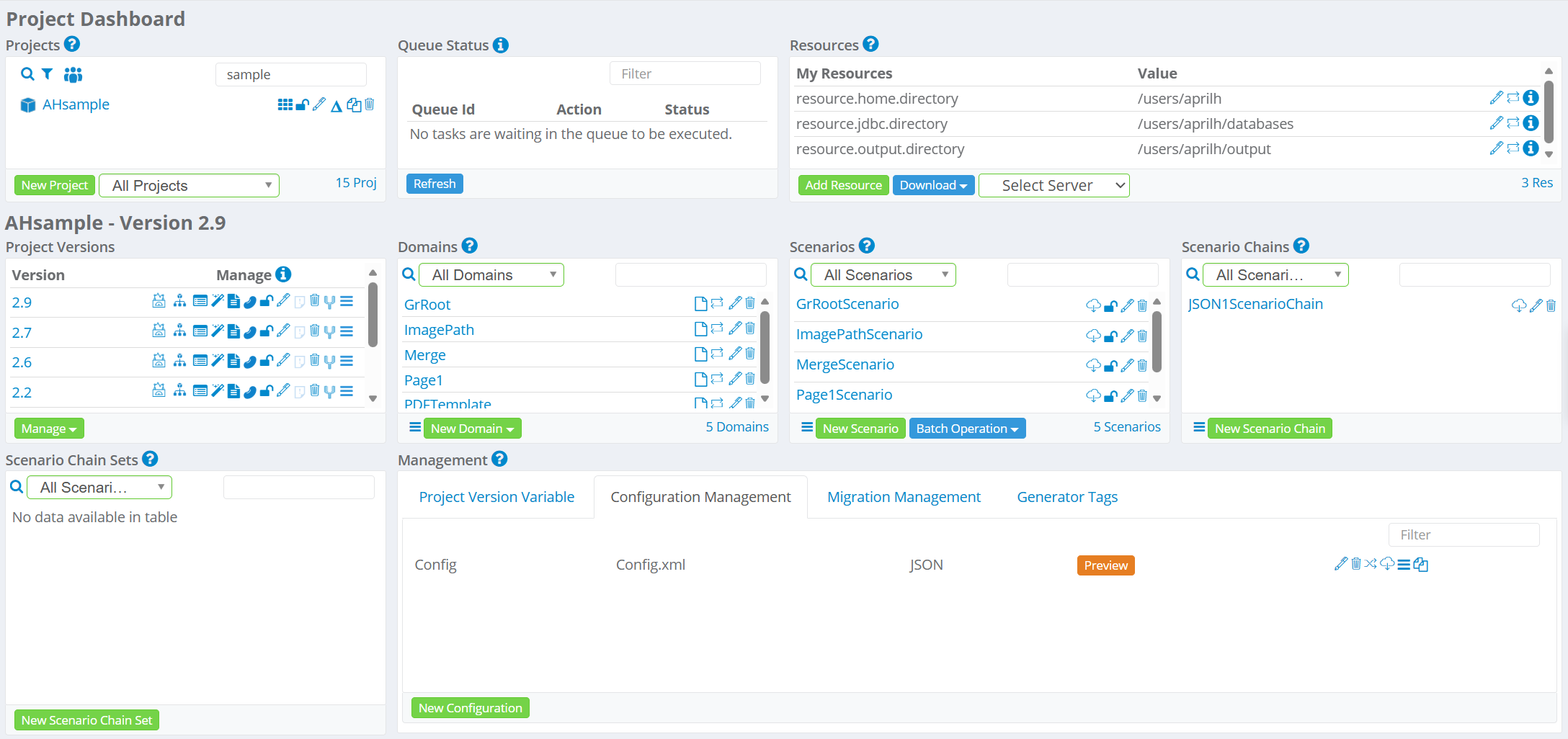
| GrRoot Domain | Assigned the SegmentDataCreatorReceiver and GrRootScenario. |
| ImagePath Domain | Contains an Attribute for each signature and the assigned Generator defines the font path. The SegmentDataCreatorReceiver is assigned to the Domain, and a Scenario has been created. |
| Domain for each page (page1, page2, ...) | Each contains an Attribute for each label and variable with a default assigned Generator. Assigned the SegmentDataCreatorReceiver to each. A Scenario should be present for each page. |
| PDFTemplate Domain | Assigned the PDFTemplateReceiver and PDFTemplateScenario. |
| Merge Domain | Assigned the JSONSegmentMergeReceiver and MergeScenario. |
| Scenario Chain | Containing all other Scenarios in the appropriate order for test data generation. |
| Domain Relationships | Automatically set up for the created Domains. In this example, the grRoot is the parent of the ImagePath and Page1 Domains. |
| Configuration File | Automatically created for the Project. |
ImagePath Domain (Signatures)
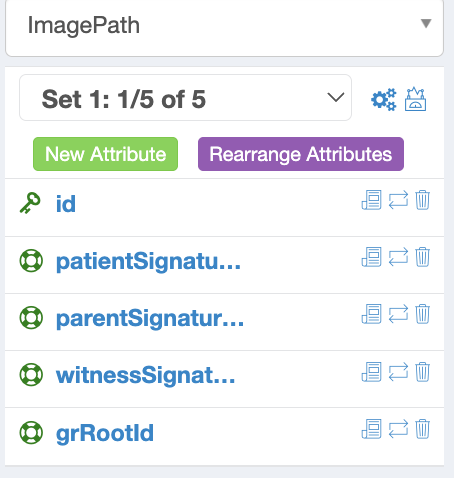
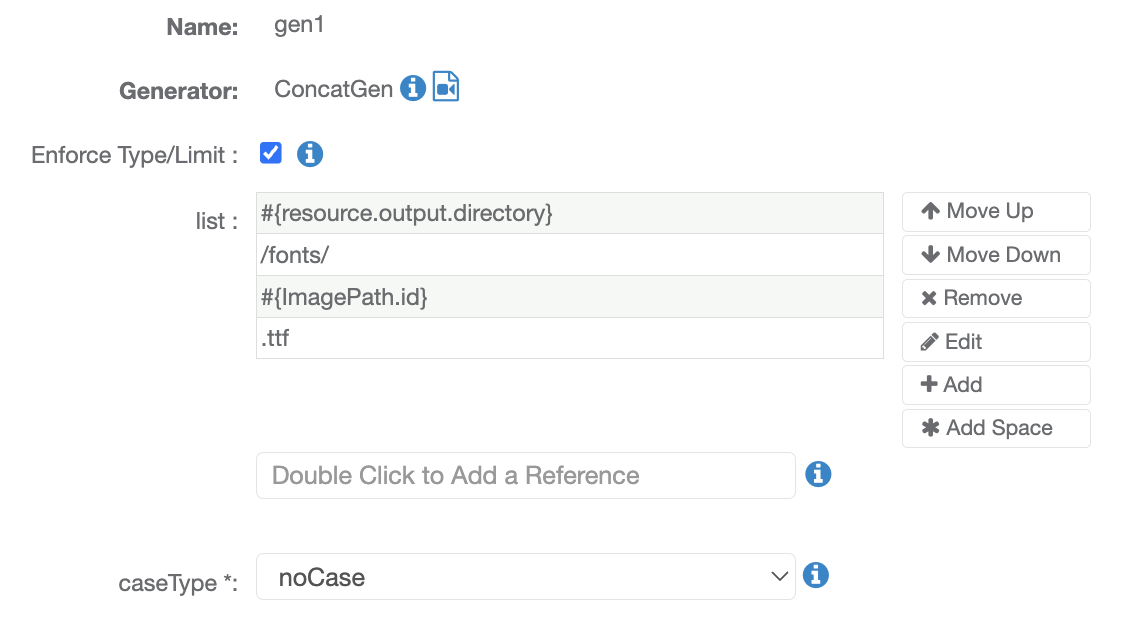
Each generated PDF will cycle through the fonts in the folder. For example, all signatures within Consent Form 1 will use the font 1.ttf, and all signatures within Consent Form 2 will use the font 2.tff, and so on. Additional fonts can be added to the fonts folder. The image below shows what the ImagePath Domain will show in preview per record:

Step 5 - Perform Generator Tuning
Modify Generator parameters or assign a different Generator to ensure correct data generation. Use the Generator Tuning Wizard or edit Attributes directly. Link Generators for complex attribute test data.
The image below shows a preview of the data generated for some of the Attributes (a total of 31 in this document - labels and variables). Each line represents the data for one document.
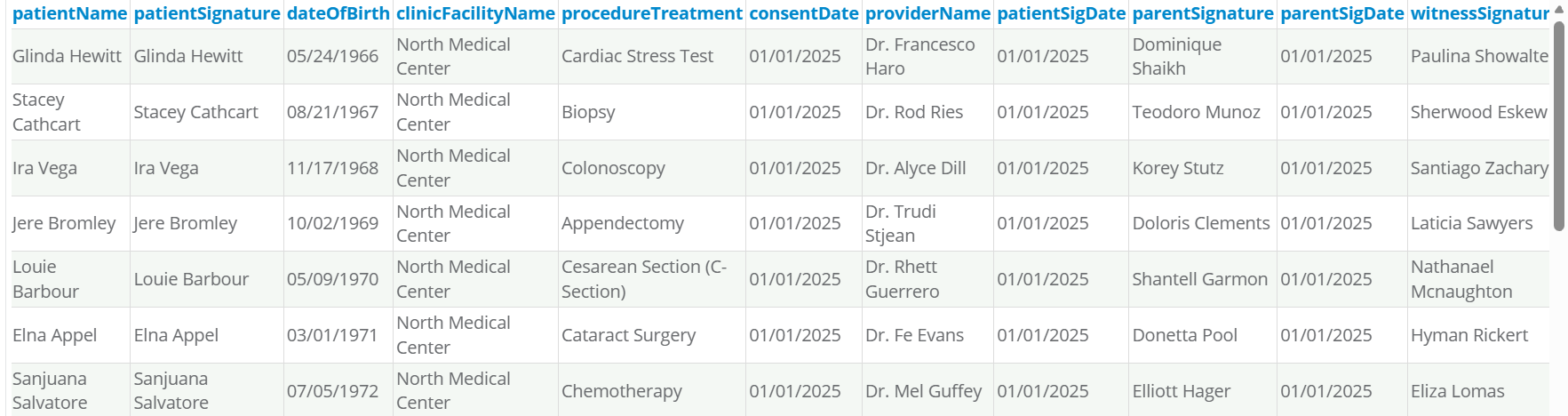
For this example, the following Generators have been used for all applicable text variables (i.e., Domain Attributes).
| Attribute(s) | Generator(s) | Description/Notes |
| patientName | FullNameGen | Generates first and last names only - no suffixes, middle name, or prefixes (change percentages to 0) |
| patientSignature | ReferenceGen | References the patientName Attribute to ensure the signature matches. |
| dateOfBirth | FlexibleDateRangeGen | Generates a date starting from 01/01/1965 that increases by 1 year with a random month and day for each record. |
| clinicFacilityName | ConstantGen | Generates the same facility name for each record. |
| procedureTreatment | ListGen | Generates a procedure or treatment from.a list for each record. |
| consentDate | ConstantGen | Generates a constant value of 1/01/2025. |
| providerName | ConstantGenFullNameGen ConcatGen | Generates a constant value of 'Dr." for doctor and a full name (first and last name only) These values are combined to create the doctor name. |
| patientSigDate | ConstantGen | Generates a constant value of 1/01/2025. |
| parentSignature | FullNameGen | Generates first and last names only - no suffixes, middle name, or prefixes (change percentages to 0). |
| parentSigDate | ConstantGen | Generates a constant value of 1/01/2025. |
| witnessSignature | FullNameGen | Generates first and last names only - no suffixes, middle name, or prefixes (change percentages to 0). |
| witnessSigDate | ConstantGen | Generates a constant value of 1/01/2025. |
Step 6 - Change the GrRoot Domain loopCount
Ideally, you should set up G-Cases to generate different volumes and varieties of test data. For this example, only the GrRoot Domain loopCount will be changed to '10'. This way, we can quickly show how to generate a small batch of documents. The steps for using G-Case are the same as for any other project.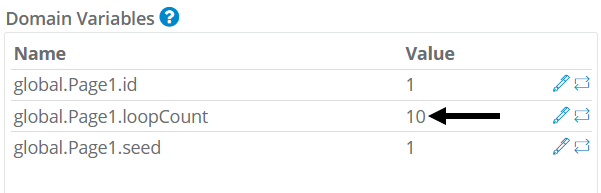
Step 7 - Download the Required Files
Four files are needed to generate synthetic PDFs. File placement details for each are provided below.
7a - PDF Template and PDF Config Files
The PDF Template and PDF Config Files are both downloaded from the PDFTemplateReceiver that is assigned to the PDFTemplate Domain. To download them from the GenRocket web platform, complete these steps:
- Select the PDFTemplate Domain in the Project Dashboard.
- Select the PDFTemplateReceiver in the Domain Dashboard.
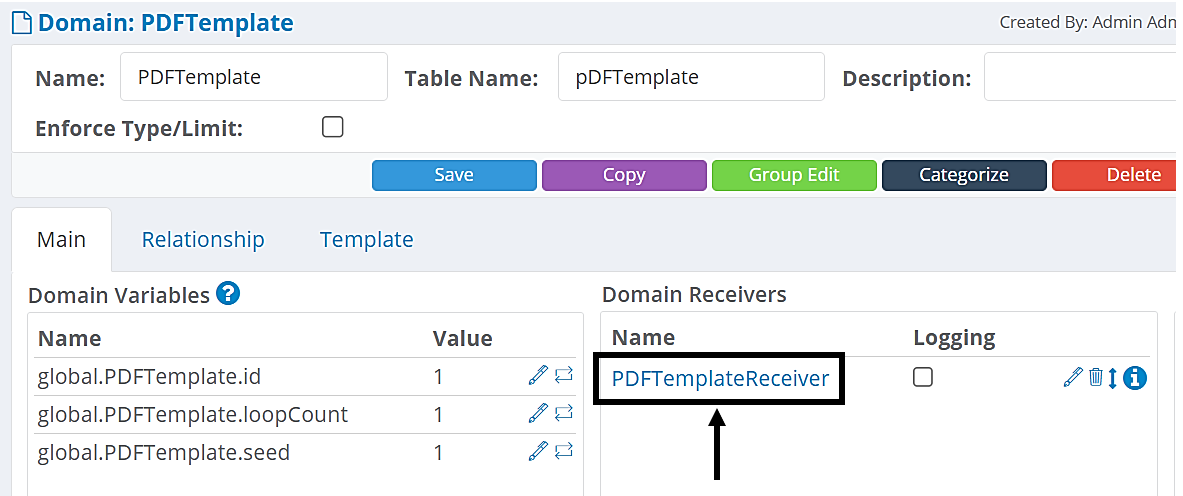
- Select Download PDF Template and Download PDF Config.
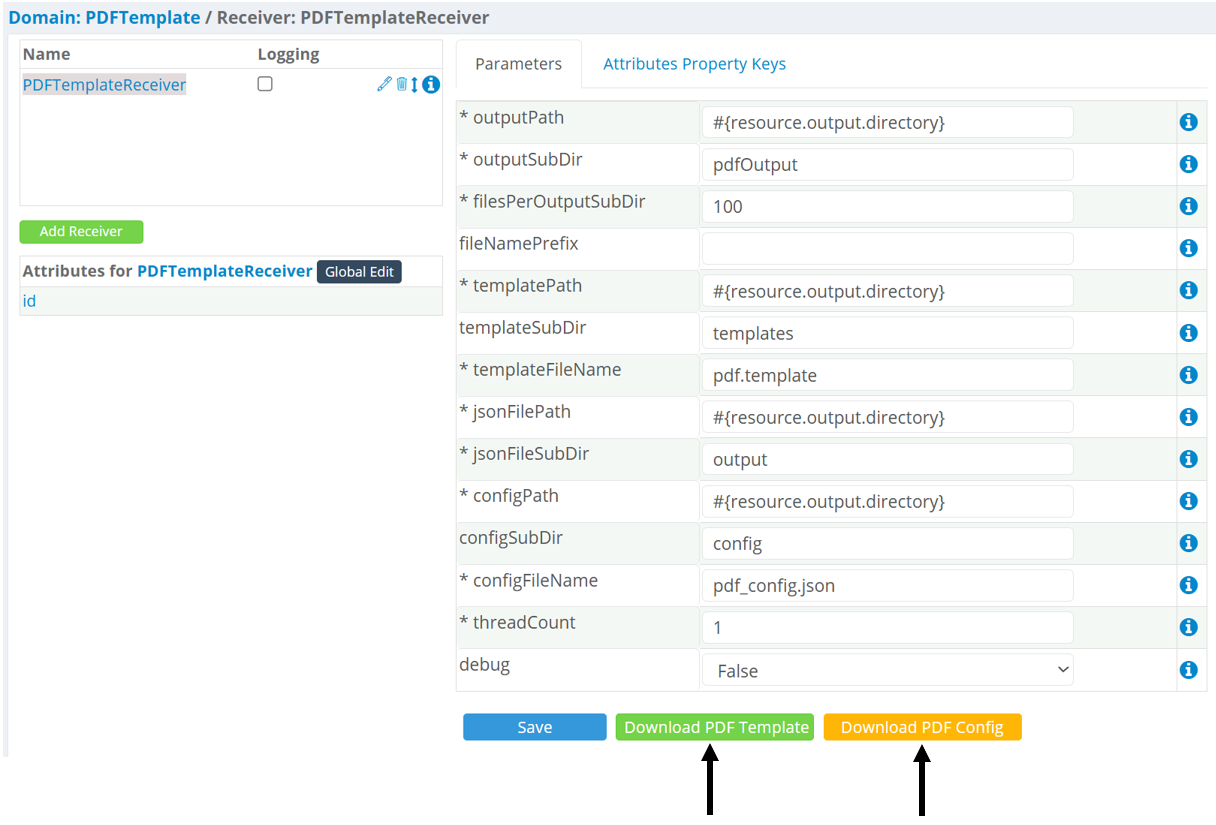
- Place the PDF Template in the location highlighted below. Example: /users/<username>/output/templates
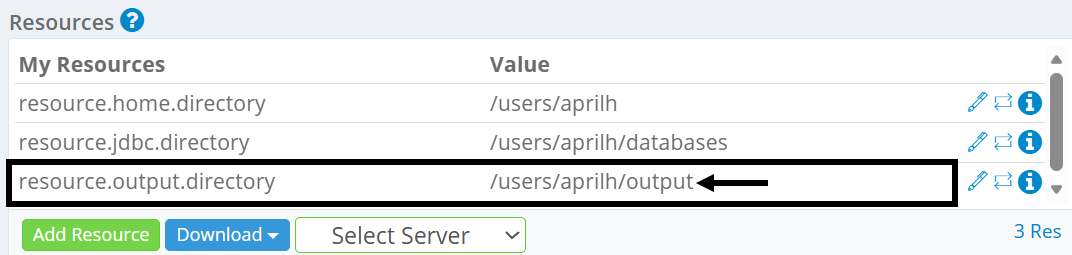

- Place the PDF Config File in the location highlighted below. Example: /users/<username>/output/config

7b - Config File
Download the Config File and place it in a config folder in your output directory.
- Select the Download icon.

- This file should be placed here:

7c - Scenario Chain
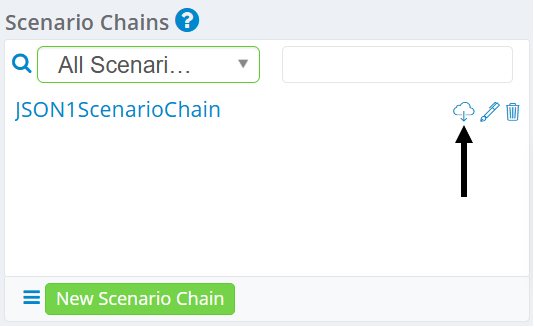
- Select the Download icon for the Scenario Chain in the Project Dashboard.
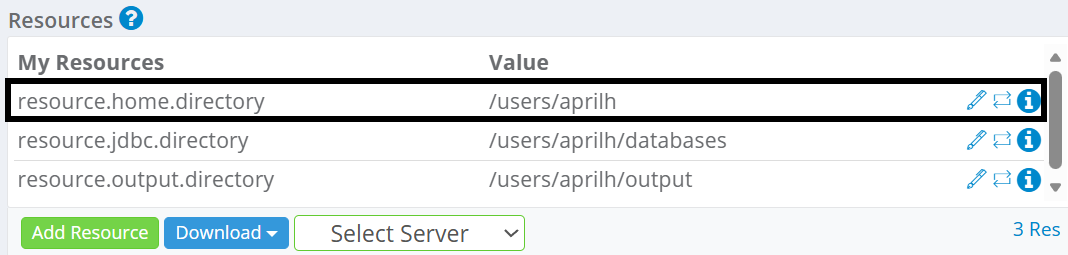
- This file can reside in your home directory. Example: /user/<username>
Step 8 - Generate PDF Documents
Run the genrocket -r command at the command line to generate PDFs. Commands will vary for G-Cases or other features.
Command:
genrocket -r <ScenarioChainName>Example:
genrocket -r JSON1ScenarioChain.grsSample Output
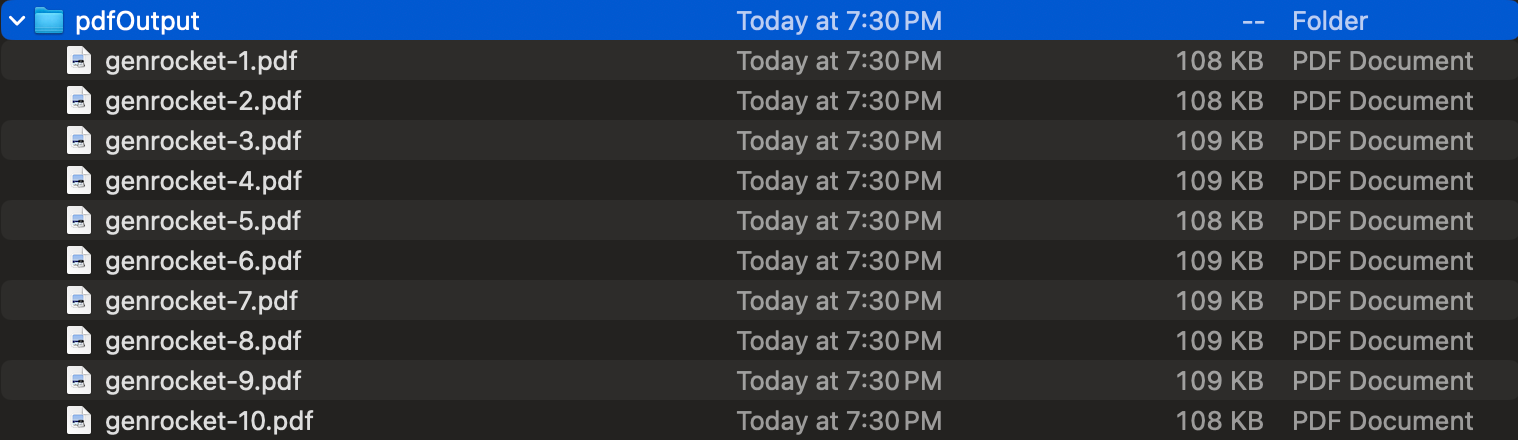
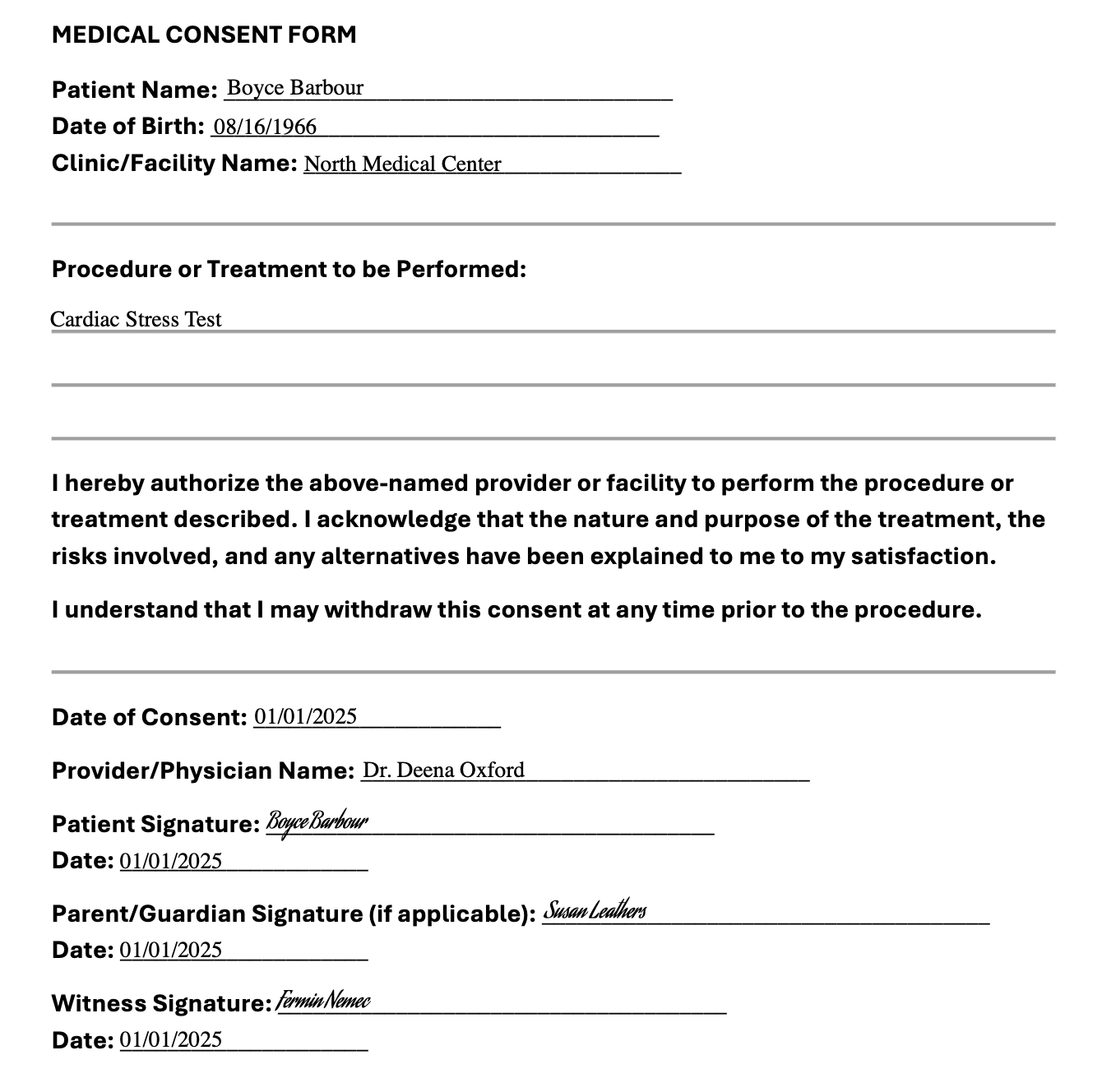
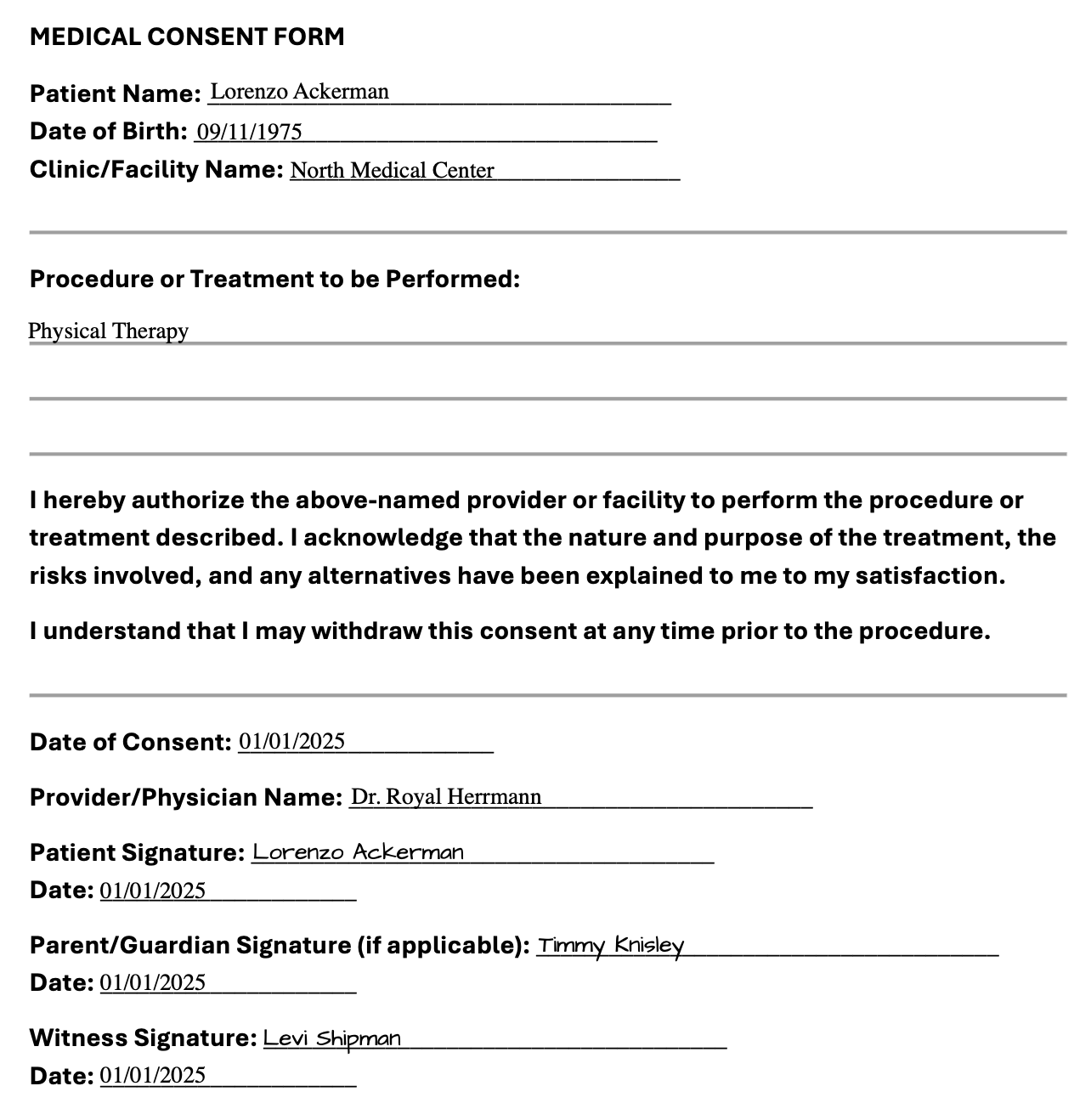
The generated files can be found in a 'PDF Output' folder in your output directory. Three images are provided below: 1) generated files, 2) First Consent Form, and 3) Second Consent Form.
Output Files
Consent Form 1
Consent Form 2
Next Steps
Set up G-Cases to generate different variations and volumes (e.g., negative, edge, load).