Overview
Within the Template Editor, you can add a Text Variable and have the Font Type, Color, or Size chosen dynamically to generate PDFs with varying signature text. Additional steps must be completed before exporting the template for Project setup.
This article shows how to add a Text Variable for a signature and make changes to it before export. It will also cover how this translates to the setup Project. A full PDF generation with signatures can be viewed here: UDA PDF Generation - Healthcare Consent Form with Dynamic Signature Fonts.
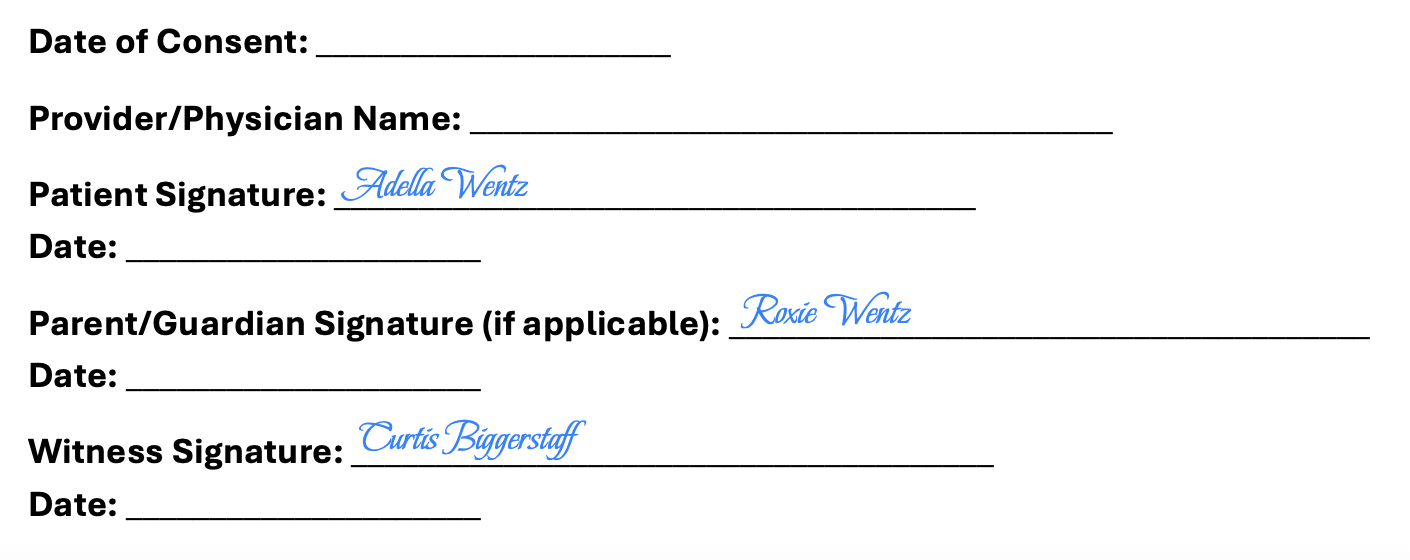
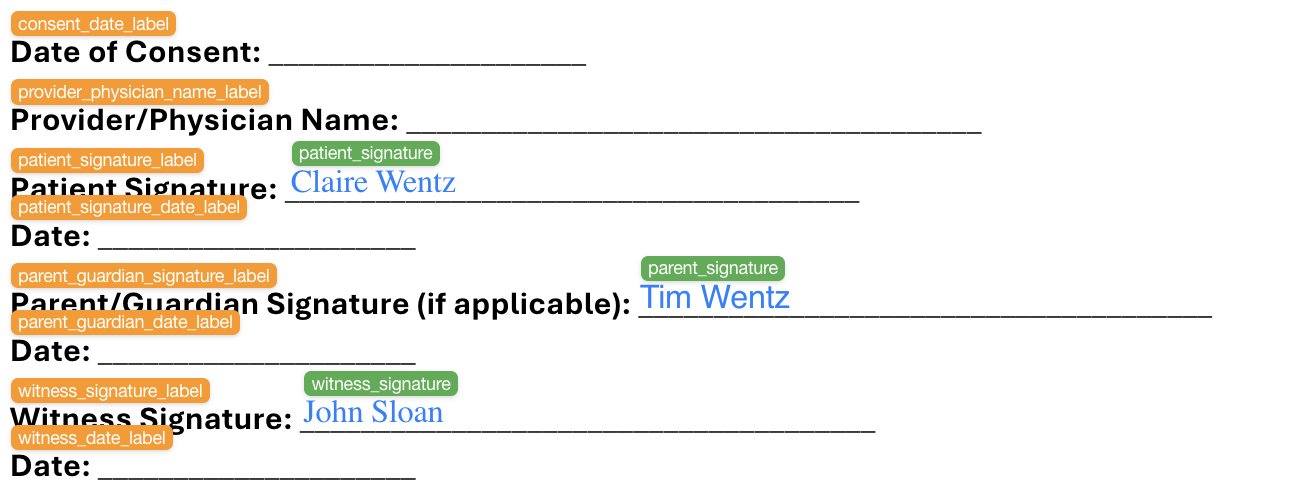
In this example, text variables will be configured for three signatures on a form and will appear similar as shown below for one of the generated PDFs.
In This Article
- Fonts Folder
- Additional Prerequisites
- Step 1 - (Optional) Add a Manual Text Variable
- Step 2 - Rename the Auto or Manual Text Variable
- Step 3 - Set the Text Variable to Choose Fonts Dynamically
- Step 4 - (Optional) Change the Font Size
- Step 5 - (Optional) Change the Font Color
- Step 6 - Save Your Changes
- Step 7 - Finish Template Modifications and Export
- How Do Signatures Appear in Your Project?
- Frequently Asked Questions (FAQs)
Fonts Folder
To generate PDFs with signatures, you will need to download the fonts.zip folder. This folder contains default fonts that can be used to dynamically generate signatures consisting of different font types. It must be downloaded and unzipped in a specific location (discussed below). Additional fonts can also be added to it and used once it has been placed in the appropriate location.
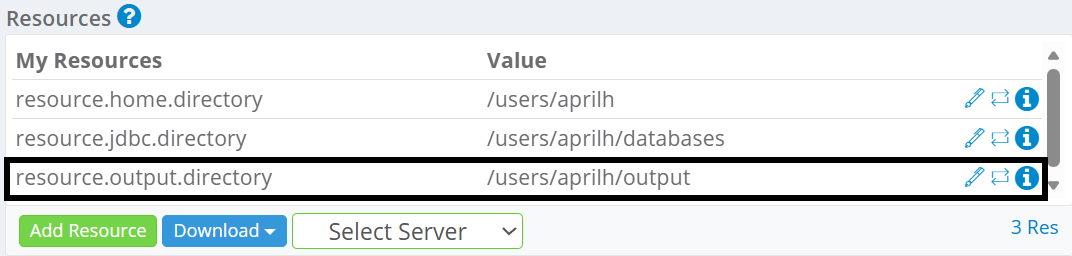
The folder should be unzipped and placed in your output directory, as defined by the resource.output.directory path.
Fonts Zip Folder: Click here to download
Path Example
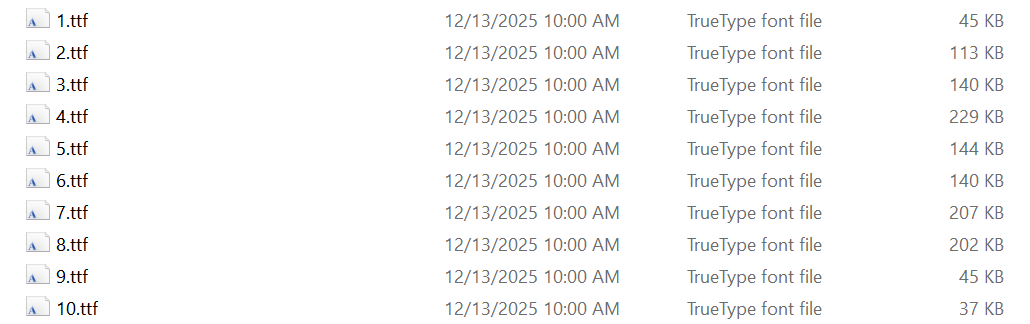
The files in the folder appear as shown below:
Additional Prerequisites
- Complete all the required setup steps in the setup article: Unstructured Data Accelerator (UDA) - Environment Setup Steps. Note: Font Folder steps are also included in this article.
- Import the Source PDF using the Import from PDF option. The instructions can be found here: UDA Template Editor - Import & Customize PDF for Project Setup.
Step 1 - (Optional) Add a Manual Text Variable
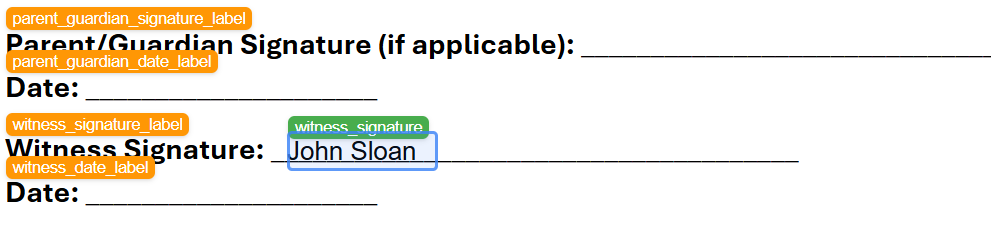
If your imported PDF already contains one or more signatures, an automatic text variable will be created for each one. However, if the signature field is blank, a manual text variable must be created and moved to the appropriate position on the template.
This example shows how to create the manual text variable. If an automatic variable has been created for your form, please skip to Step 2. Complete the following steps within the Template Editor:
- Right-click anywhere in the canvas (right side).
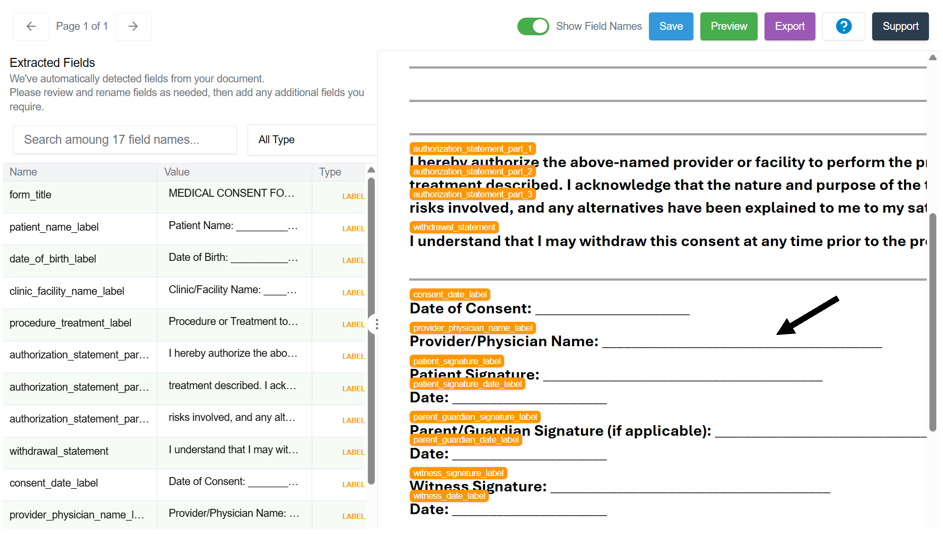
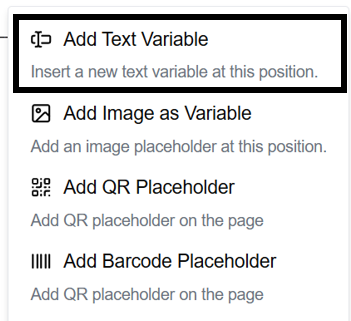
- Select Add Text Variable to insert a new text variable.
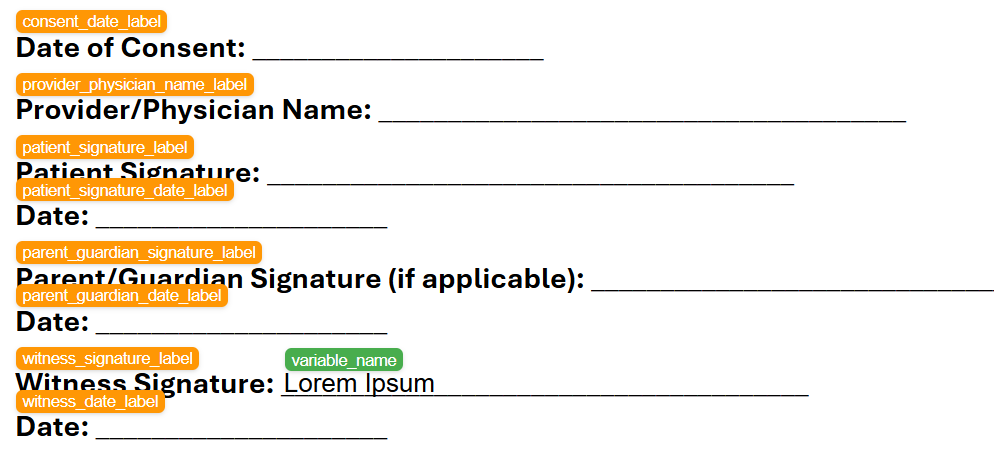
- Click and drag or use your arrow keys to move the new variable to the desired location.
Step 2 - Rename the Auto or Manual Text Variable
It is recommended to rename the text variable to make it easier to identify in your Project.
- Select the Auto or Manual Text Variable filter option.
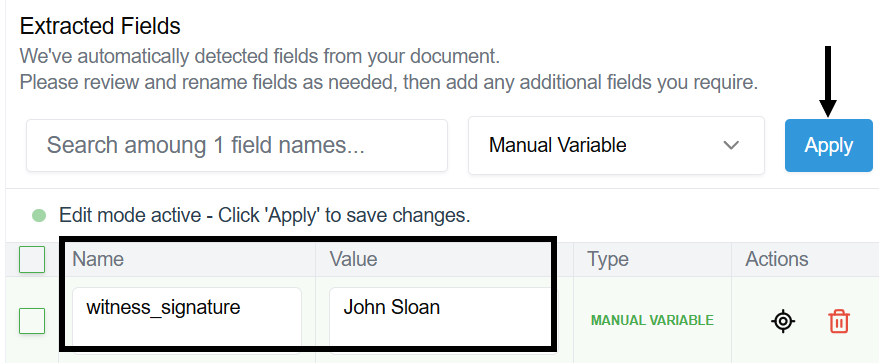
- Select Edit to enter 'Edit Mode'.
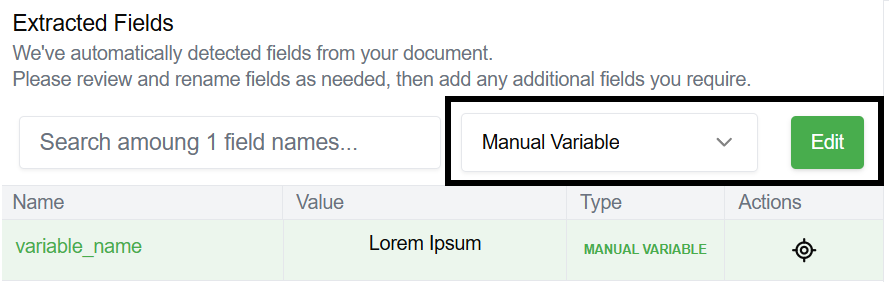
- Select the field and type to change the Variable Name.
- Optionally, the Text Variable Value can be changed in the same way. This is the display value used when previewing the template.
- Select Apply to save the change.
Step 3 - Set the Text Variable to Choose Fonts Dynamically
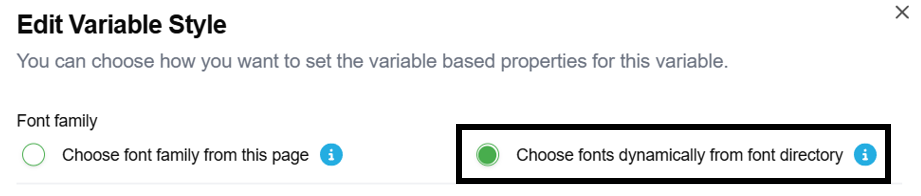
By default, the font type is set to 'Sans Serif' and can be changed to a different font for all generated PDFs. Fonts can also be selected dynamically from the fonts folder, so the text appears as different signatures in each PDF. To do so, complete these steps:
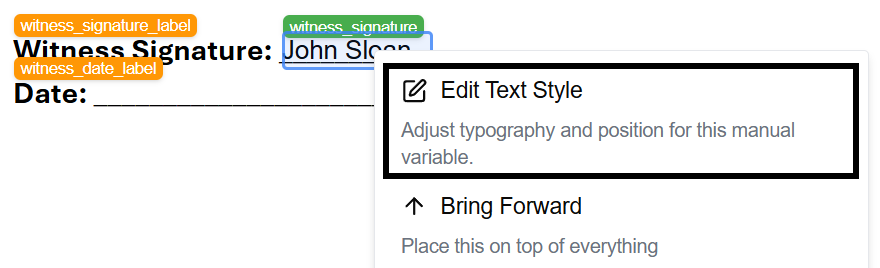
- Right-click on the Text Variable within the template.
- Select Edit Text Style.
- Select Choose fonts dynamically from text directory.
Step 4 - (Optional) Change the Font Size
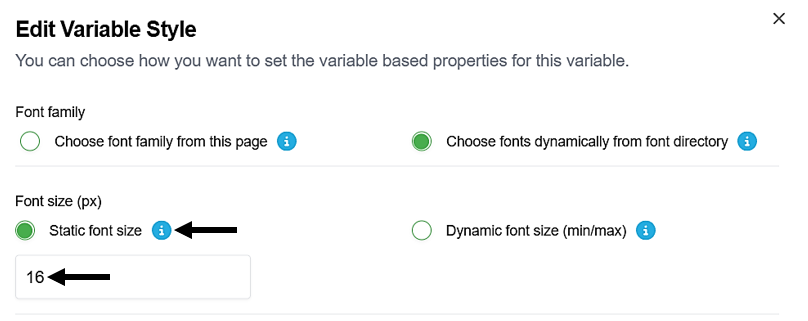
The Font Size can either be static or dynamic. For static font size, enter a different size value, and that size will be used for every generated PDF.
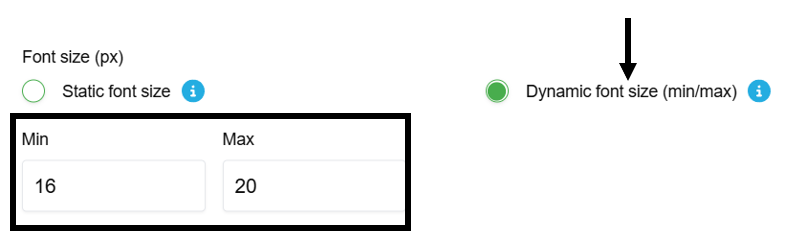
For dynamic font sizes, select Dynamic font size (min/max) and then enter a min and max value. The text size will vary dynamically for each PDF.
Step 5 - (Optional) Change the Font Color
The Font Color can also be static or dynamic. For static font color, select a different color or enter the HEX value, and that color will be used for every generated PDF. The default selection is black.
For dynamic font color, select Dynamic color (predefined palette). When selected, a random color from a predefined palette will be assigned to the text variable in each document.

Step 6 - Save Your Changes
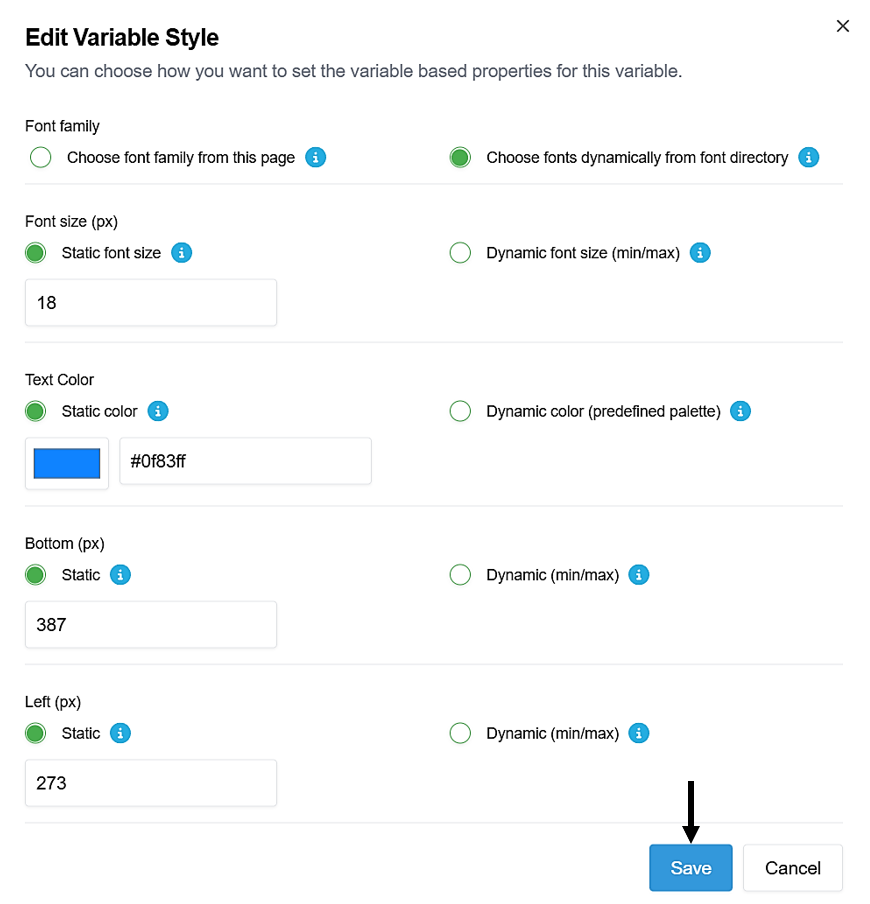
Note: You can also change the bottom and or left positioning of the text variable in this pop-up form. The defaults will be used for this example.
Once all changes have been made, remember to select Save. For this example, the font type will be dynamically chosen. The font size will be '18' and the font color will be 'blue'.
Step 7 - Finish Template Modifications and Export
- Complete any other template modifications. For this example, only the three signature text variables will be added.
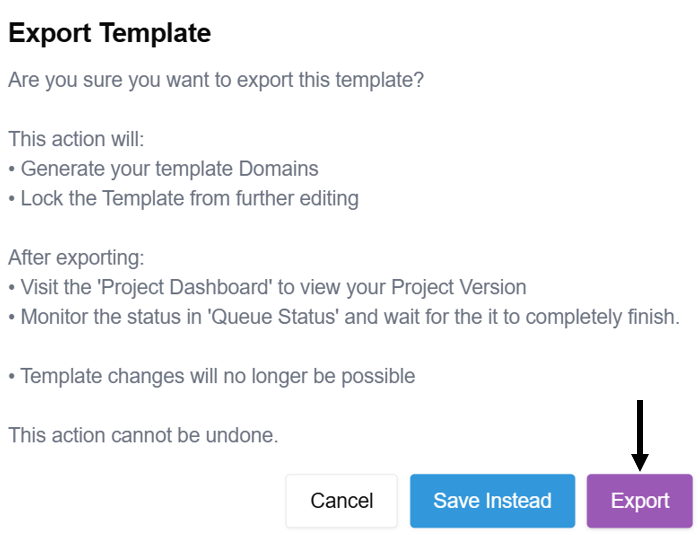
- Select Export to export the template to set up your Project.
How Do Signatures Appear in Your Project?
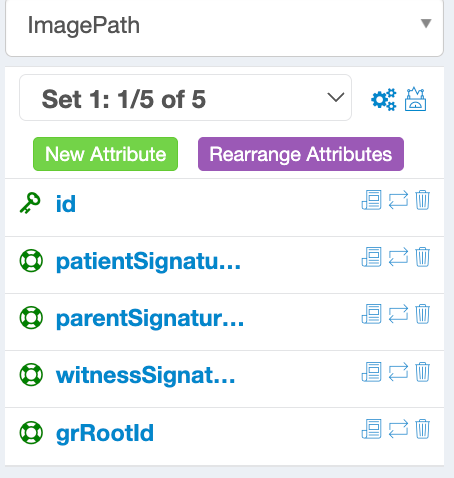
When your template is exported, an ImagePath Domain will be created containing all Signature Text Variables as Attributes.
For example, if the template contains three signatures, three Attributes will be created with the same names as the text variables in the Template Editor.
Each Attribute is assigned a ConcatGen, which has a path value that points to a specific Font in the fonts folder. This can be changed to use a specific font for every PDF signature, or to use certain fonts for PDF signatures based on your needs.
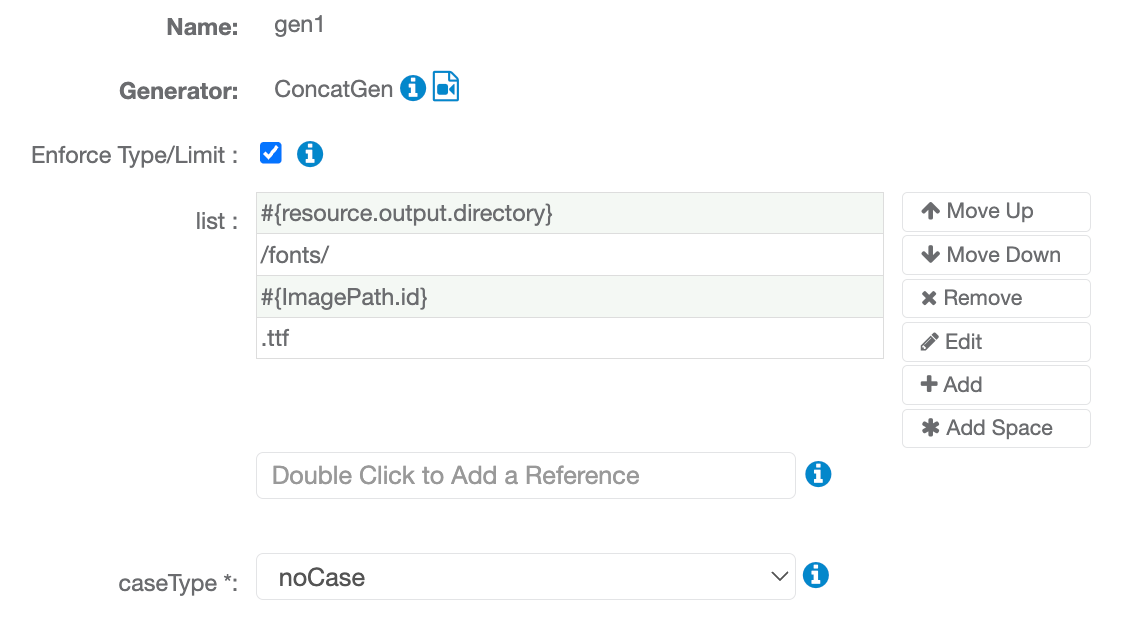
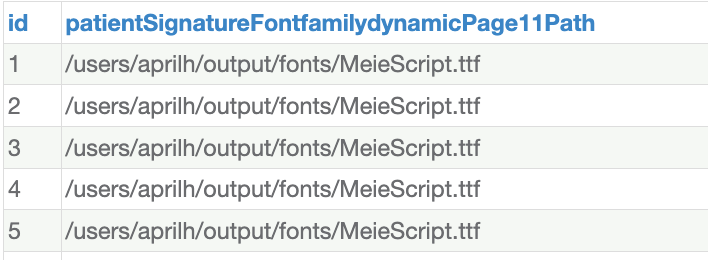
Unless otherwise specified in the Generators, each PDF will use the fonts in the same order as they appear in the fonts folder. For example, the first PDF will use the font 1.ttf, the second PDF will use the font 2.tff, and so on. This is demonstrated in the preview image below for the ImagePath Domain.

Frequently Asked Questions (FAQs)
- What happens if the fonts folder is not present or in the wrong location?
- The PDF will still be generated, but with a default font.
- The used font depends on what operating system you are using and what has been set as your default font.
- Can I use Custom Fonts?
- Yes! You can add your own fonts to the fonts folder.
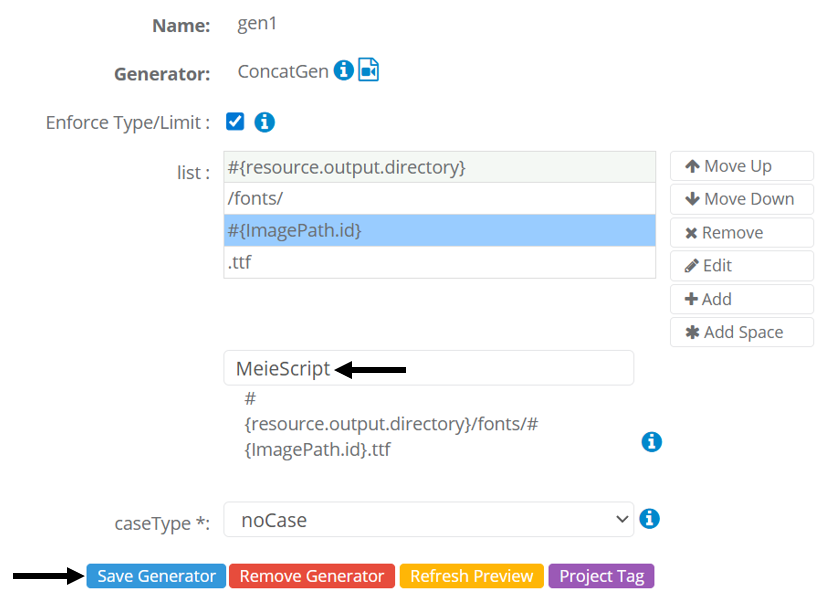
- A MeieScript.ttf has been added to the fonts folder below.

- Are there any restrictions on the font file types or naming conventions for custom fonts?
- Files with a .ttf extension are supported. Other font file extensions have not been tested.
- Extra spaces in the font file name may cause it not to be detected. Example: MeieScript - Regular.ttf
- How do I modify the path so that a specific font is used for signatures?
- Select the Project and Project Version.
- Select the ImagePath Domain.
- Select the Attribute.
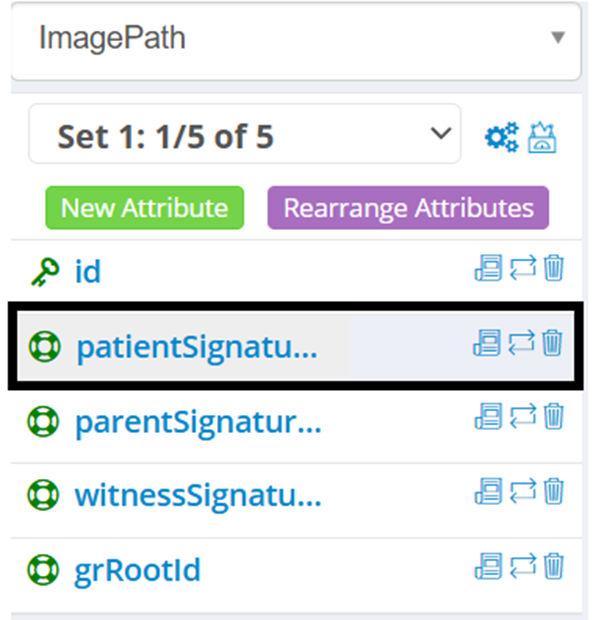
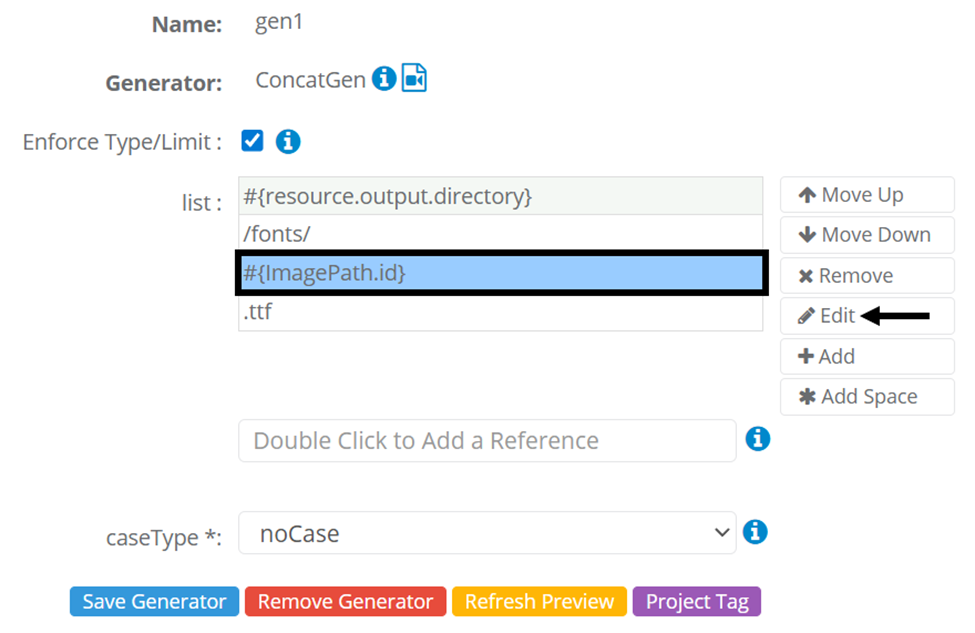
- Select #{ImagePath.id} and select Edit.
- Enter the Font File Name and select Save.
- The font type will be used for the signature on each generated PDF.