
What is G-Analytics?
G-Analytics is designed to provide clear, role-based insights into how the GenRocket platform is being used. Whether you are monitoring organizational trends, tracking project activity, or reviewing detailed testing statistics, the dashboards present complex data in an accessible and practical format for a wide range of users.
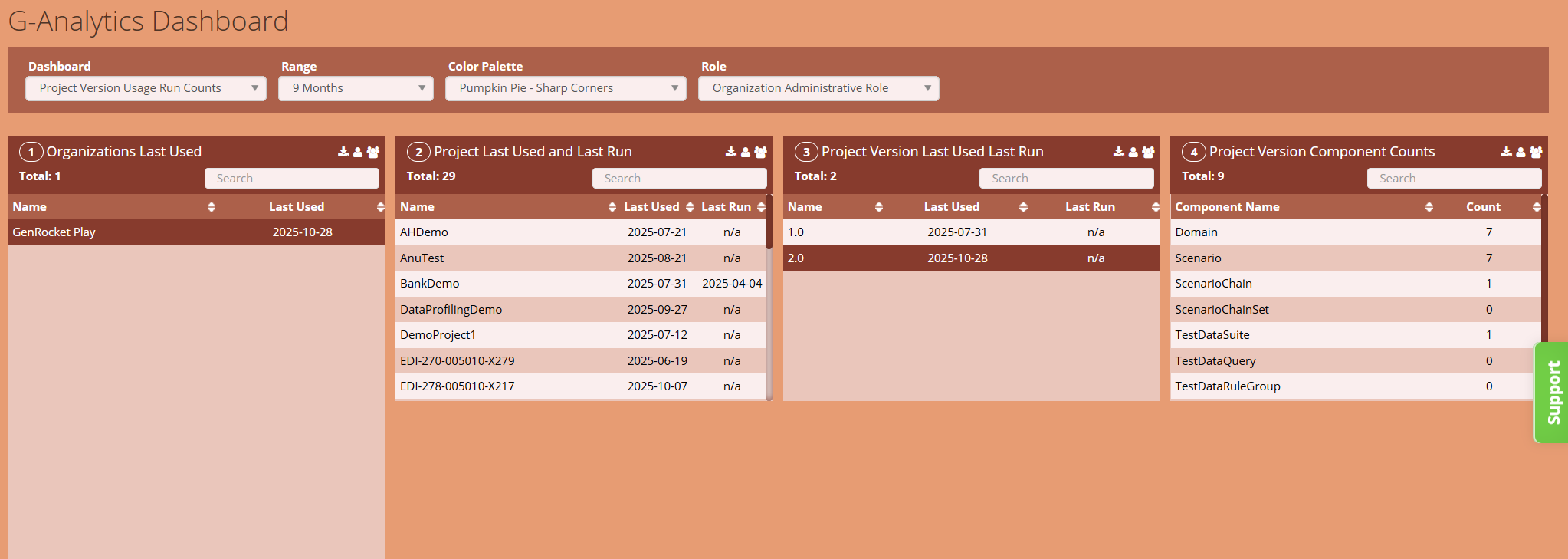
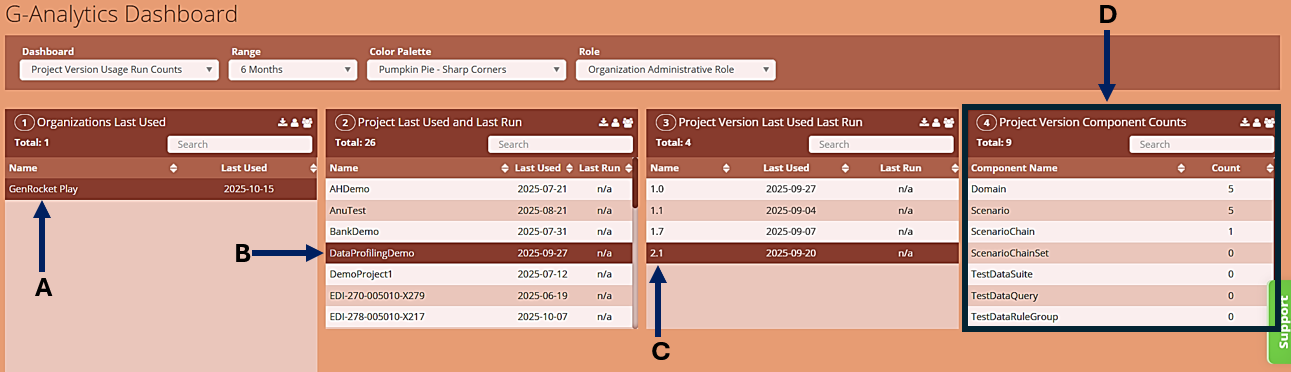
G-Analytics offers seven dashboards, each with key data and analytics, providing a clear view of GenRocket's usage. Information is collected from GenRocket Cloud and from users' local environments via G-Repository, where test data is generated. The Project Version Usage Run Counts dashboard is shown below.
In This Article
- What are the Benefits of G-Analytics?
- What are the Key Features of G-Analytics?
- Common Use Cases
- Available Reporting Dashboards
- Who can use G-Analytics?
- What are the G-Analytics Roles?
- How is Data Collected for Reports?
- Prerequisites for G-Analytics
- How to Access G-Analytics
- Reporting Dashboard Menus
- Report Options
- How to View and Use Reporting Dashboards
- Reporting Dashboards (In Detail)
What are the Benefits of G-Analytics?
G-Analytics offers clear insight into GenRocket usage within your organization. Key benefits include:
- Track component usage patterns to gauge platform adoption.
- Monitor login activity to gauge user engagement.
- Identify high-usage teams and active testing areas by project activity.
- Leverage usage data to enhance test coverage, reduce cycle time, and boost productivity.
- Review version usage to ensure teams are aligned with current project assets.
- Assess individual user activity to guide enablement and training efforts.
- Track actions performed for platform users (e.g., user creation, user updates, password changes).
What are the Key Features of G-Analytics?
- View usage and runtime statistics
- Near real-time data (updates approximately every 60 seconds)
- Reports are designed to be intuitive and user-friendly.
- Export reporting dashboards and individual reports as CSV files.
- Multiple reporting dashboards and reports are available (high-level to granular).
Common Use Cases
- Monitoring Platform Adoption - Track how frequently GenRocket is used across departments or teams and identify trends in platform adoption over time.
- Project Performance Tracking - Review and use test data generation statistics to assess the progress and activity levels of ongoing projects, enabling more effective resource allocation.
- User Activity Auditing - Examine user activity to ensure data generation and usage comply with organizational policies and identify any unusual patterns.
- Optimizing Test Coverage - Analyze runtime statistics to identify gaps or redundancies in test data usage, supporting improved coverage and efficiency.
Available Reporting Dashboards
The seven reporting dashboards are listed below. Some dashboard reports may depend on selections made in other reports. For example, selecting a project in one report may determine which project versions are shown in another report within the same dashboard.
- Audit Trail Dashboard
- Organization Component Counts Dashboard
- Organization Login History Dashboard
- Organization Project Summary Dashboard
- Organization Scenario Run Activity Dashboard (G-Repository Required)
- Project Version Usage Run Counts Dashboard (G-Repository Required)
- User Usage Run Activity Dashboard (G-Repository Required)
Who can use G-Analytics?
- All GenRocket users can view G-Analytics.
- Dashboard visibility is determined by the assigned user role.
- Only Organization Admins can see all seven dashboards.
- General Users do not currently have access to any dashboards.
What are the G-Analytics Roles?
- Organization Admin Role – Users assigned this role can view all seven currently available dashboards in G-Analytics.
- General User Role – Users with this role can access the G-Analytics section, but do not have access to any reporting dashboards at this time.
How is Data Collected for Reports?
Data displayed in G-Analytics Reports are collected from two sources:
- GenRocket Cloud - Activity is automatically collected with no additional setup required. This includes Project Setup, Domains, Attributes, etc.
- Local Environment Usage Statistics - Runtime activities, such as Scenario runs in the client environment, are collected in GenRocket Cloud via G-Repository. G-Repository must be installed and active (connected to GenRocket Cloud) to send statistics from the local environment.
Prerequisites for G-Analytics
- G-Repository is highly recommended for accurate data reporting. It is required for specific dashboards that report on statistics from the local environment.
- Without G-Repository, these dashboards will still be viewable, but their statistics will not accurately reflect local usage.
- If G-Repository is active, data flows seamlessly into the reports listed below, ensuring accurate and insightful analytics.
- Organization Scenario Run Activity
- Project Version Usage Run Counts
- User Usage Run Activity
- Without G-Repository, these dashboards will still be viewable, but their statistics will not accurately reflect local usage.
- Organization Admin Role - to see currently available reporting dashboards.
How to Access G-Analytics
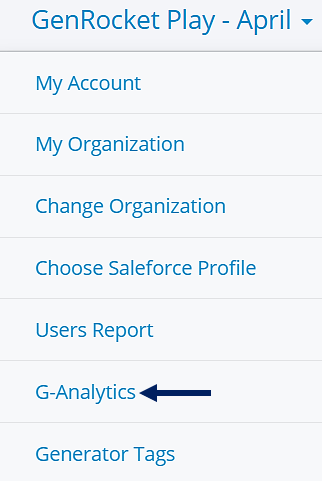
- Select the Organization Menu in the upper-right corner of the application.
- Select G-Analytics from the menu.
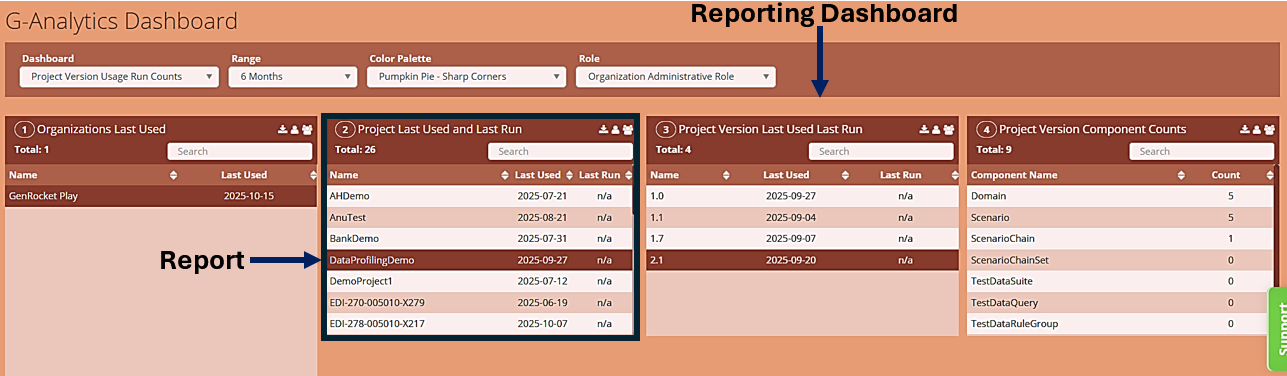
- The G-Analytics Dashboard provides access to multiple dashboards, each containing several reports with data connected to user selections.
Reporting Dashboard Menus
The G-Analytics Dashboard includes up to four menus. Some menus are only displayed for specific reporting dashboards.

| Dashboard Menu | Choose one of the seven available reporting dashboards to view its data and corresponding reports. |
| Range Menu | Select a pre-defined range or enter a custom date range for the selected dashboard. |
| Color Palette Menu | Select a color theme for the dashboard to change its appearance and aid visual distinction. |
| Role Menu | Choose a user role for G-Analytics. The selected role controls which dashboards and options are visible. |
Report Options
Reports within a dashboard can contain the following options:
 | Download Dashboard Report. Exports the dashboard report as a CSV file. Each dashboard section is treated as a separate report. The exported details reflect only the specific report chosen. |
 | Highlights the linked parent within the reports. Example: Selecting this icon in the Project Versions report would highlight the Project Report, since it is the parent report. |
 | Highlights the linked children reports within the dashboard. Example: Selecting this icon in a Project report would highlight the Project Versions report, since it is a child report. A report may have multiple child reports. |
 | Change the order in which items are displayed within a Report column. |
How to View and Use Reporting Dashboards
The G-Analytics Dashboard will update automatically as selections are made. Complete the steps below:
- Select a Role (if more than one is assigned). The Role determines available dashboards.
- Select a Reporting Dashboard to view.
- Select a Report Range (e.g., 1 Week, 1 Month) or enter a Custom Range. Not all reports have this option.
- (Optional) Select Color Palette. Changes the color and look of the G-Analytics Dashboard.

- Select an item in a report to see any related information. For example, when viewing the Project Version Usage Run Counts report:
A. If more than one organization is present in the report, one will need to be selected.
B. Select a Project.
C. Select a Project Version.
D. Displayed Component Counts will be for the selected Project and Project Version.
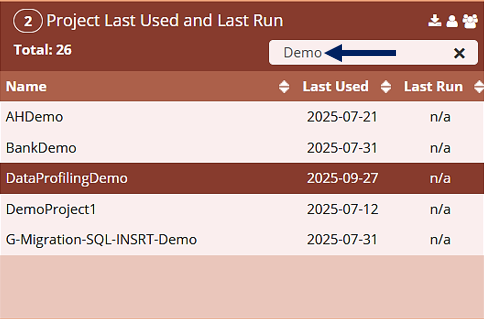
- To locate a specific item in the report, such as Projects or Components, use the Search bar. Any text matching what is entered will be displayed.
Reporting Dashboards (In Detail)
The following section provides more details and a preview of each available reporting dashboard.
Audit Trail Dashboard
Displays auditable actions performed over a selected period of time (e.g., 1 day, week, month). This report shows each Actor/User, Action taken, Target User, Timestamp, and the Actor/User Address (i.e., IP Address). G-Repository is not required for this report. Tracked actions include:
- Org Admin Update User
- Org Admin Create User
- Org Admin Enable User
- Org Admin Disable User
- User Changes Their Password
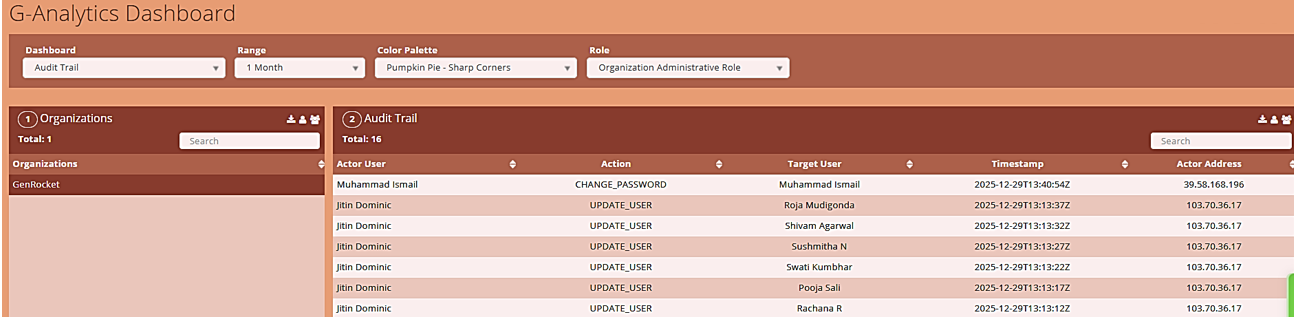
| 1 | Organizations | Shows the accessible organizations. |
| 2 | Audit Trail | Shows each action an Actor/User has taken within the GenRocket web platform, what action was performed, what user the action was performed for, timestamp (date and time) information, and the Actor/User's IP address information. |
Organization Component Counts Dashboard
Displays a summary count of all organization components for each accessible organization, including Projects, Project Versions, Domains, Scenarios, Scenario Chains, Scenario Chain Sets, G-Cases, G-Rules, G-Queries, Stories, and Epics.
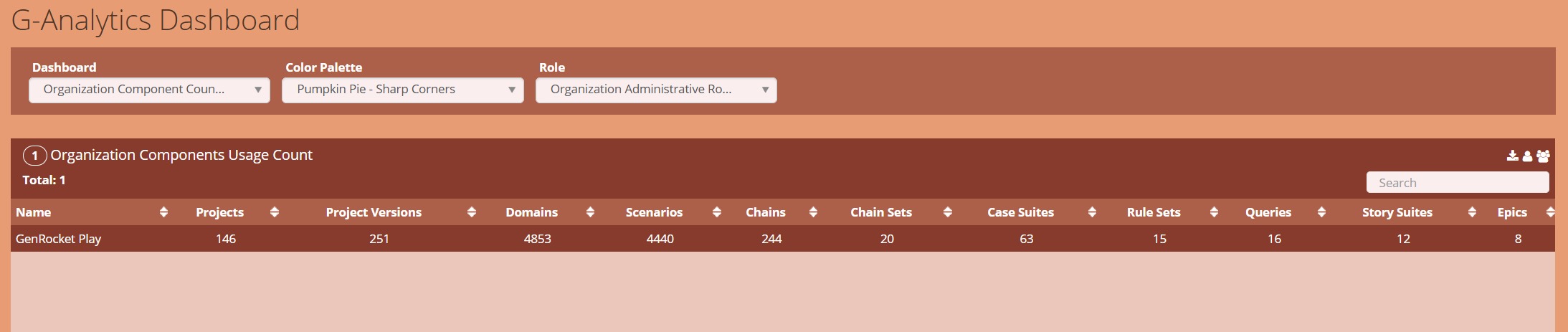
This dashboard contains one report:
| 1 | Organization Components Usage Count | Shows all the accessible organizations and their component usage counts. |
Organization Login History Dashboard
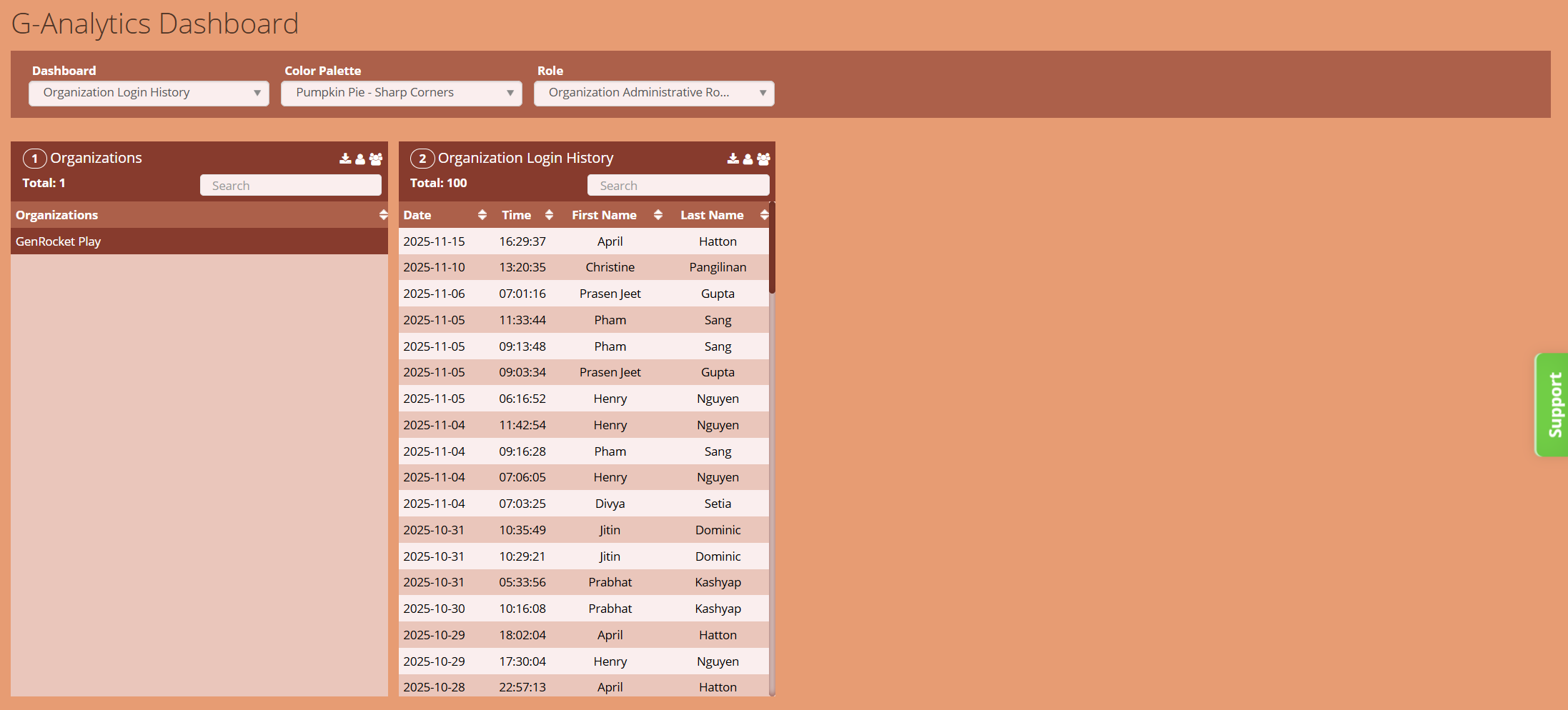
| 1 | Organizations | Shows the accessible organizations. |
| 2 | Organization Login History | Lists the 100 most recent logins for the selected organization. |
Organization Project Summary Dashboard
Displays each accessible organization and the component usage counts for each project within that organization. The displayed data includes the numbers of Project Versions, Domains, Scenarios, Scenario Chain Sets, G-Cases, G-Rules, G-Queries, Stories, and Epics.
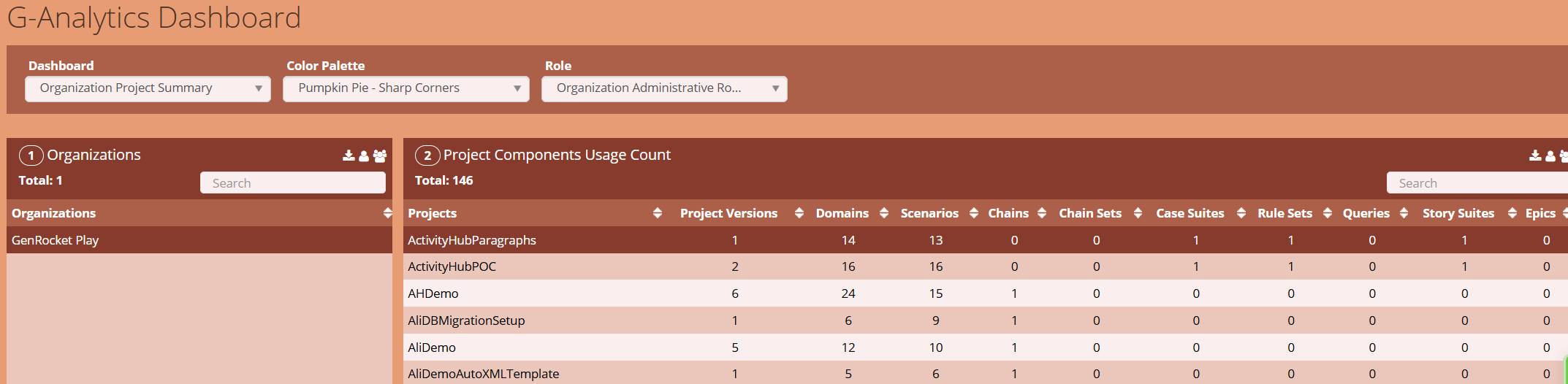
This dashboard contains two reports:
| 1 | Organizations | Shows the accessible organizations. |
| 2 | Project Components Usage Count | Component usage counts of each project for a selected Organization. |
Organization Scenario Run Activity Dashboard (G-Repository Required)
For a selected organization and data range, the dashboard displays each Project that ran a Scenario, along with the most recent run data for each.
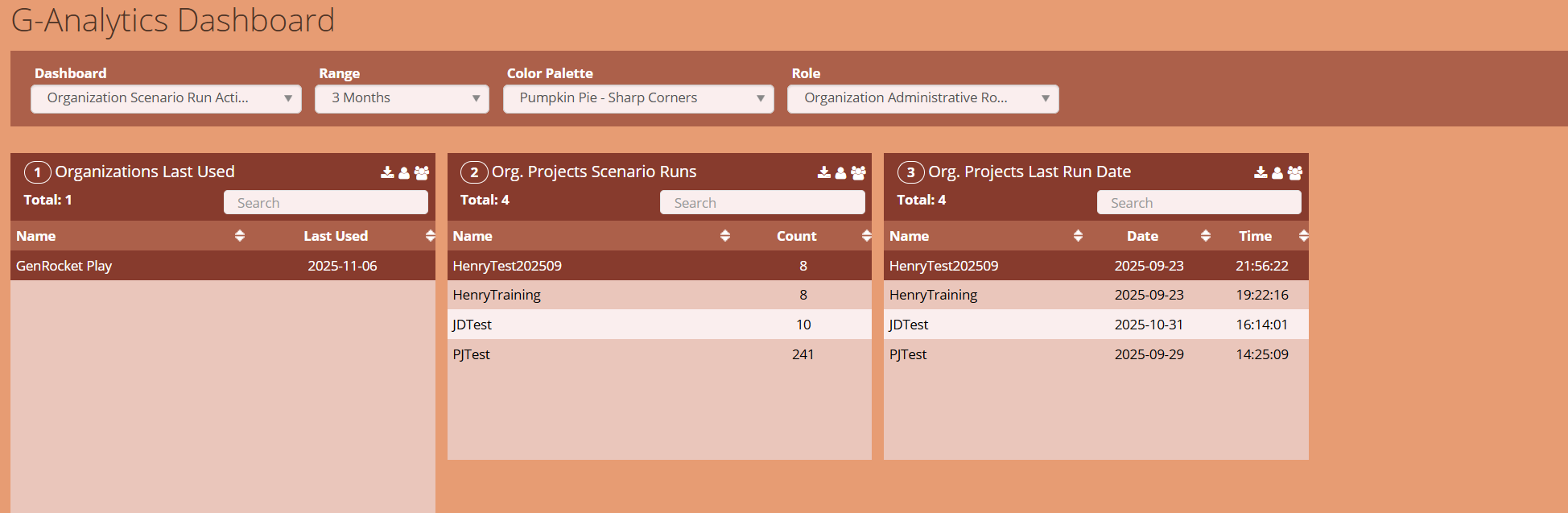
This dashboard contains three reports:
| 1 | Organization Last Used | Shows available organizations and their 'Last Used' date within the selected date range. |
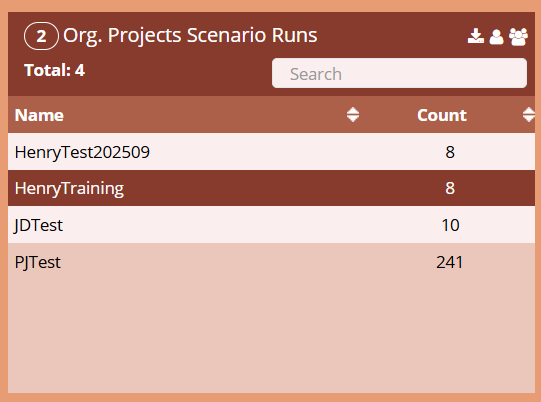
| 2 | Org Projects Scenario Runs | Displays Projects of a selected organization that had a Scenario run, and how many times each project has been run. |
| 3 | Org Projects Last Run Date | Lists the last run date and time for all projects of the selected organization within the selected date range. - showing the project name, date, and time. |
Project Version Usage Run Counts Dashboard (G-Repository Required)
For a selected organization and date range, it displays the last-used and run statistics for each Project, Project Version, and Project Version Component.
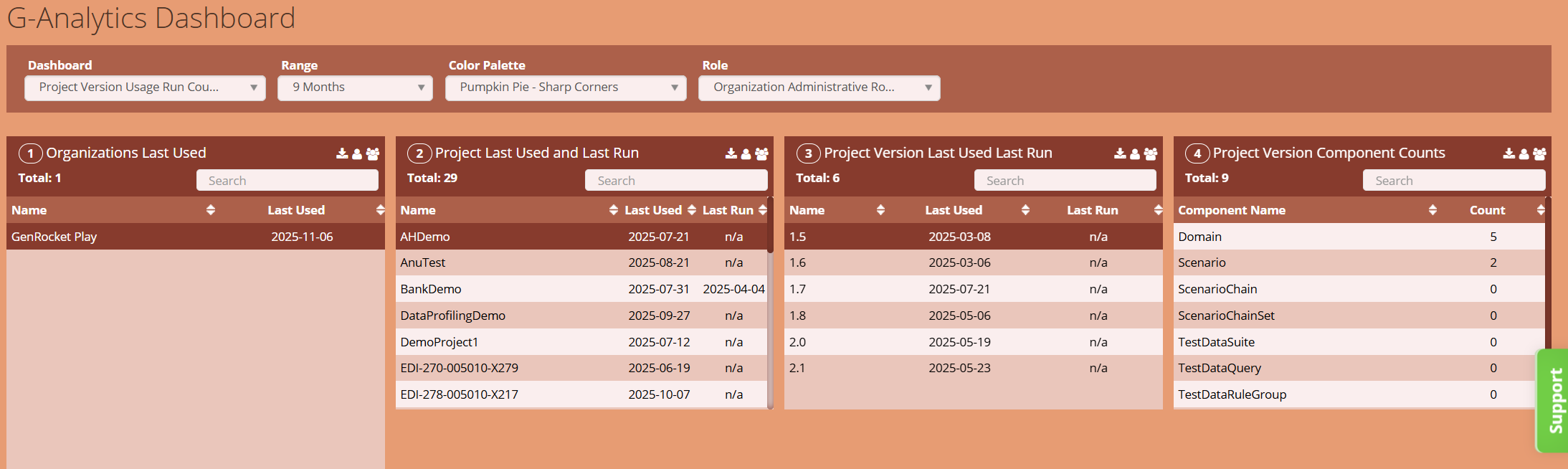
This dashboard contains four reports:
| 1 | Organization Last Used | Shows organizations and their 'Last Used' date within the selected date range. |
| 2 | Project Last Used Last Run | Last used and run date of all projects for a selected organization. |
| 3 | Project Version Last Used Last Run | The last used and run dates for a selected project version. |
| 4 | Project Version Component Counts | Component usage counts of the selected project version. |
User Usage Run Activity Dashboard (G-Repository Required)
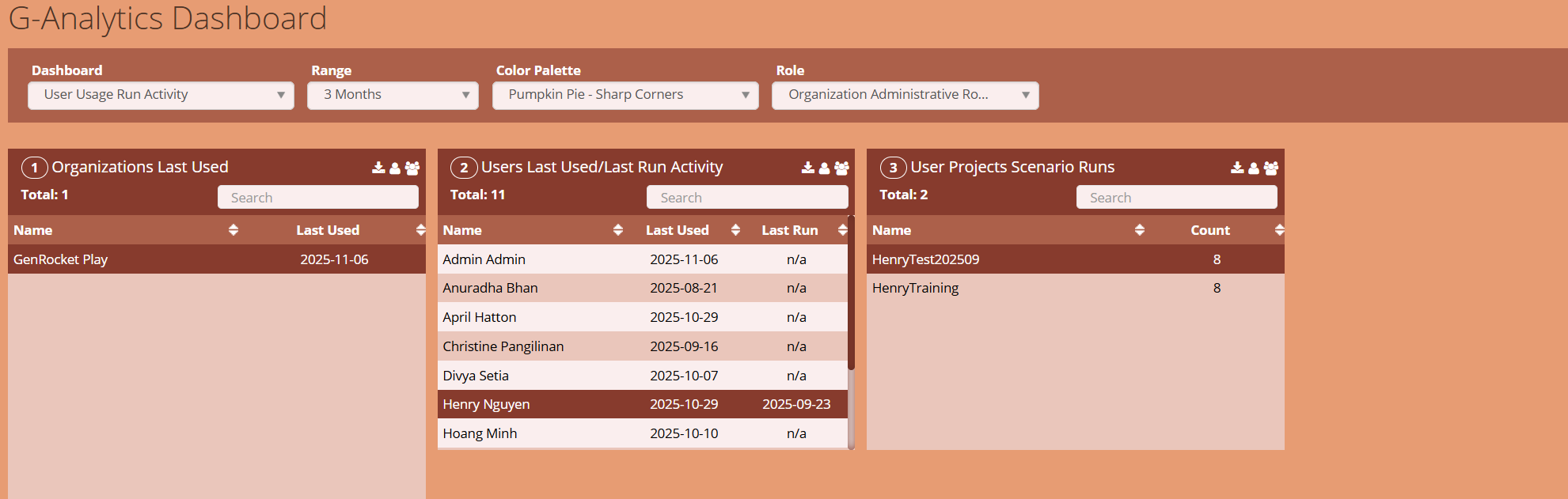
This dashboard contains three reports:
| 1 | Organization Last Used | Shows available organizations and their 'Last Used' date within the selected date range. |
| 2 | Users Last Used/Last Run Activity | Shows all users' last used and last run dates for the selected organization. |
| 3 | User Projects Scenario Runs | Shows projects of a selected organization and how many times each project has been run by the selected user. |