
Overview
The Project Management feature provides finer control over which users can create Projects. When enabled, Organization Administrators (Org Admins) can assign the Project Control Role to individual users. Any user who has been assigned this role can create their own Projects.
In This Article
- Prerequisites
- How to Assign the Project Control Role to Individual Users
- How to Assign the Project Control Role to Multiple Users
- What Users See - Project Control Role Enabled vs. Disabled
- What happens if the Project Control role is removed from a user?
Prerequisites
- The Project Management feature must be enabled by GenRocket.
- Contact support@genrocket.com to request feature enablement.
How to Assign the Project Control Role to Individual Users
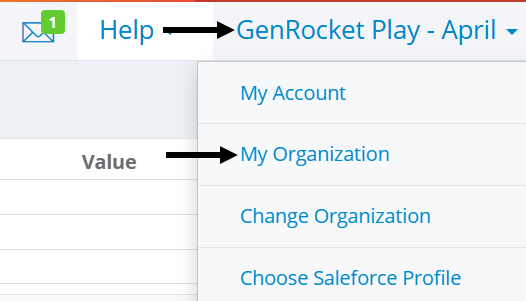
- Open the Organization Menu and select My Organization.
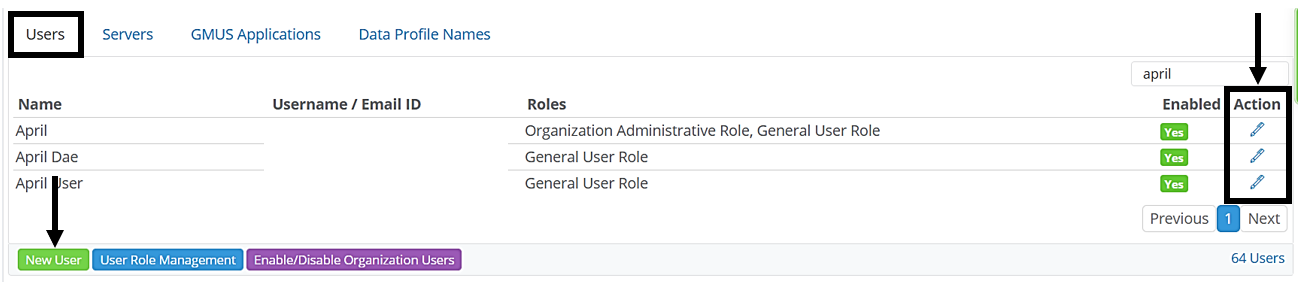
- Make sure the Users tab is selected.
- Select New User to add a user, or select Edit (Pencil) to modify an existing user.
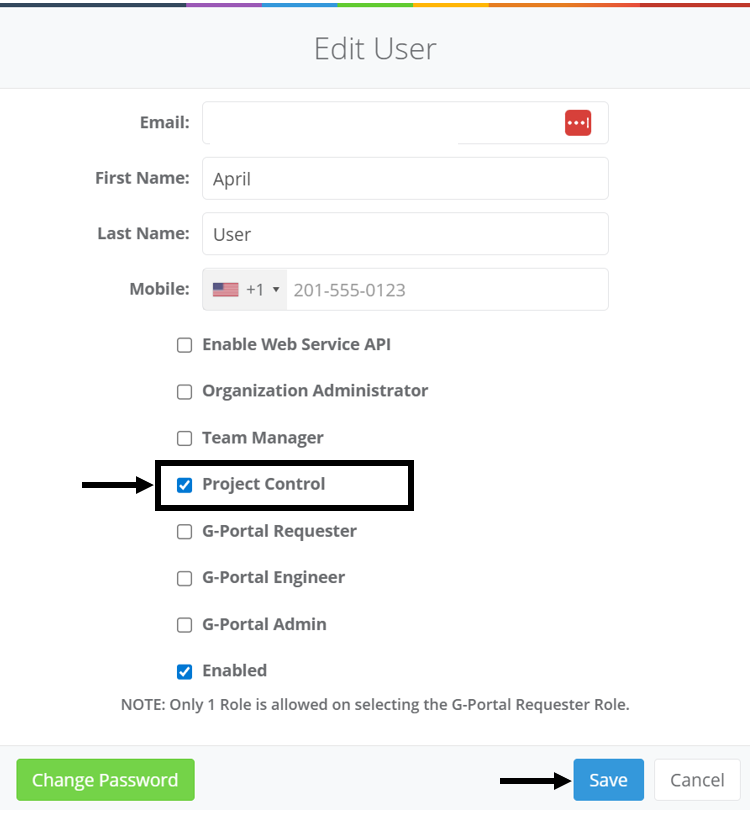
- Check the Project Control role for the user.
- Select Save to add or update the user's assigned roles.
- Instruct the user to log out and log back in for changes to take effect.
How to Assign the Project Control Role to Multiple Users
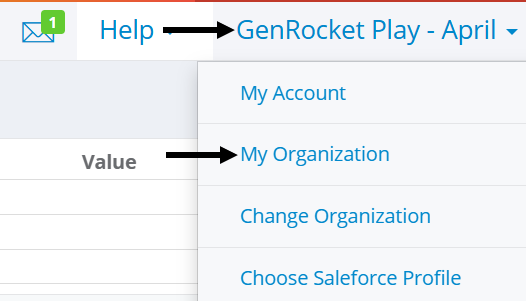
- Open the Organization Menu and select My Organization.
- Make sure the Users tab is selected.
- Select User Role Management.
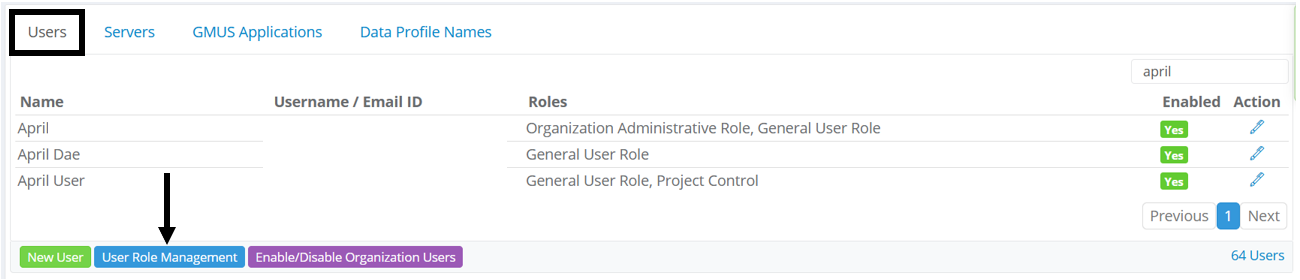
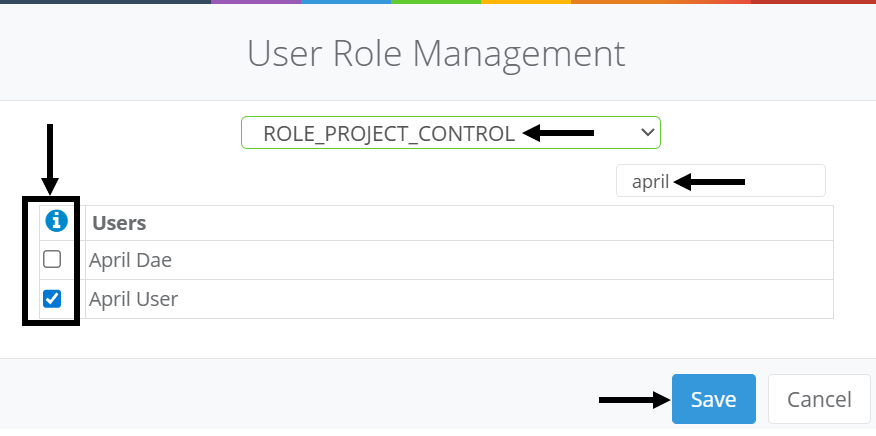
- Select the Project Control role from the drop-down menu.
- For many users, use the Filter field to search for specific users.
- Use the check boxes to assign the role to each user.
- Select Save to save.
What Users See - Project Control Role Enabled vs. Disabled
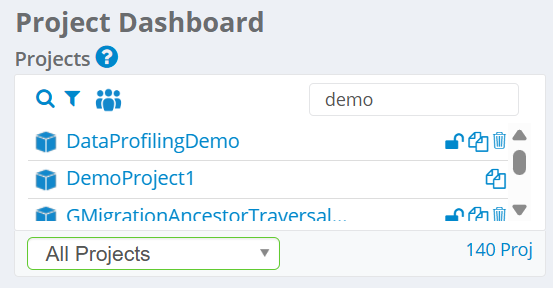
- Role Disabled - Users cannot add new Projects and will not see the New Project option in the Project Dashboard.
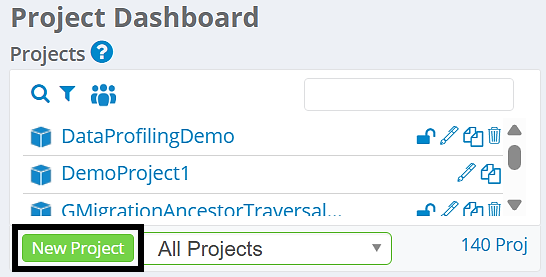
- Role Enabled - Users with this role can add Projects using the New Project button in the Project Dashboard.
Note: Only users who an Org Admin or Project Creator can delete Projects. See this article to learn more about deletion permissions for Projects: Deletion Permission Policy for Projects and Project Versions.
What happens if the Project Control role is removed from a user?
- The user will still be permitted to create and remove Project Versions for their existing Projects.
- They will not be able to create new Projects.