
The Unstructured Synthetic Test Data Problem
Companies rely on document-heavy workflows that must operate accurately and efficiently. As part of testing and training, they require high volumes of quality data without exposing sensitive company or customer information. Unstructured data presents an operational challenge, requiring secure and scalable processing.
To understand why this is such a challenge, it's essential to clarify the difference between unstructured data and structured data. This understanding sets the stage for evaluating relevant solutions.
- Unstructured data lacks a defined model and structure, and comes in many forms, such as PDFs, images, text, and voice.
- Structured data has a defined model that is easily modeled in a GenRocket project. Examples include relational databases and CSV files, which have columns and rows.
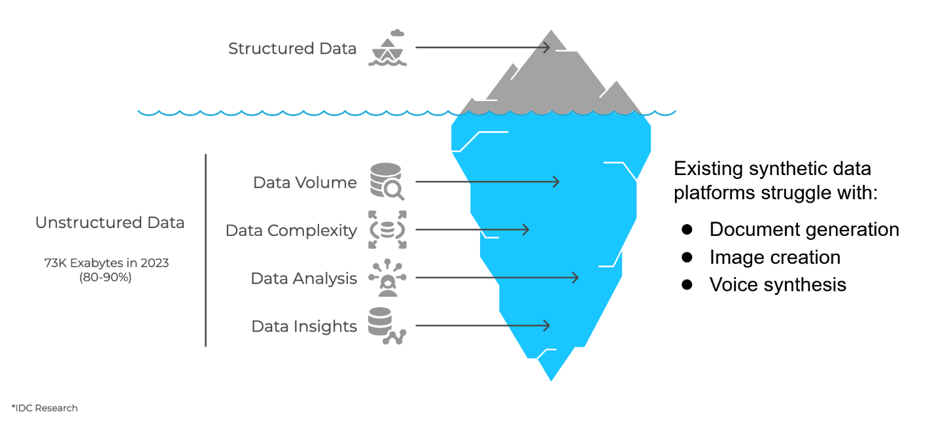
With these data types defined, let's learn about the Unstructured Data Accelerator (UDA) and how unstructured data workflows benefit from synthetic document generation. Please take a moment to review the diagram below as well. It shows that structured data is just the tip of the iceberg and that the ability to test unstructured data workflows is important.
What is the Unstructured Data Accelerator (UDA)?
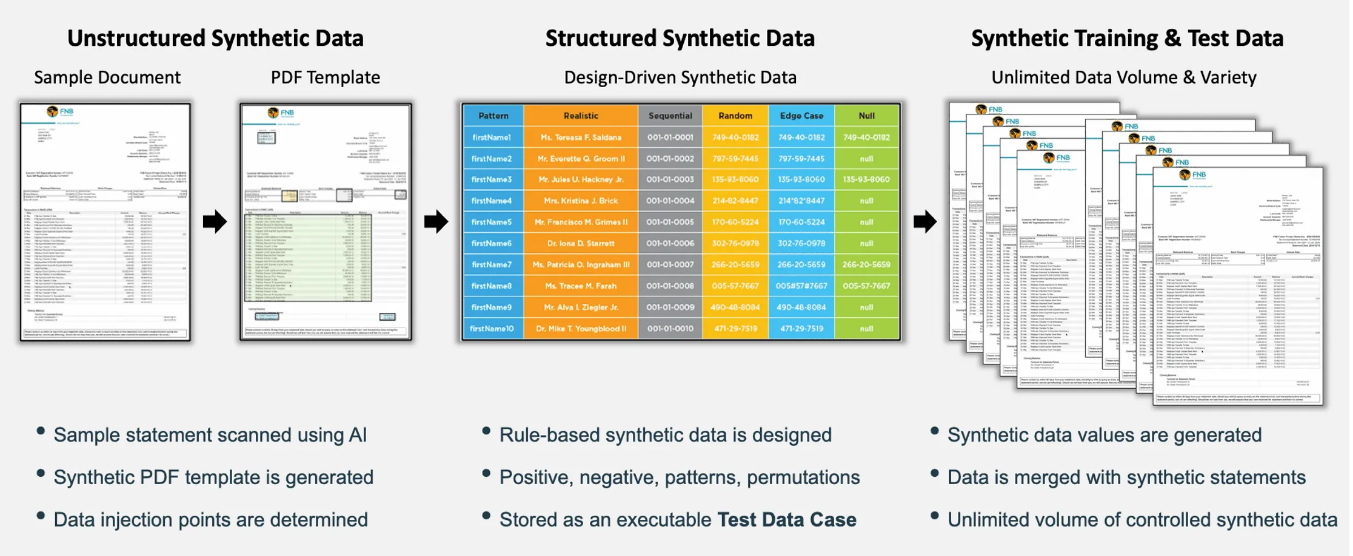
The Unstructured Data Accelerator (UDA) is a GenRocket feature that quickly generates large volumes of safe, realistic PDF files for scalable test data. UDA combines structured and unstructured data into a template to create large volumes of PDF documents containing synthetic test data. It makes it easy to cover positive, negative, and edge cases, as well as all required permutations for testing unstructured data workflows.
How Does it Work?
- Model - Users upload a PDF source file containing unstructured data, which is used to create a customizable template. The template is exported and used to model their Project.
- Design - Users design their test data by assigning different Generators, adjusting parameters, and setting up G-Cases (volume and variety).
- Deploy - Users download the necessary files and generate their PDF documents using GenRocket Runtime, an API call, or script (depends on how GenRocket is deployed).
- Manage - Users create new versions as needed when the source document changes so that these changes are reflected in testing.
In This Article
- Supported UDA Formats
- Benefits of UDA
- Industry-Based Use Case Examples
- PDF Support Guidelines
- Best Practices
- Prerequisites
- PDF Creation Workflow
- Additional Information
Supported UDA Formats
- Digital PDFs - Forms, Reports, Invoices, Bank Statements, etc.
- Other formats (e.g., images, voice) to be supported at a later time.
Benefits of UDA
- Protect Sensitive Data by generating privacy-compliant, realistic PDFs.
- Speed Up Testing by generating unstructured test data quickly without data cleanup.
- Improve Coverage by simulating diverse formats to test more scenarios and edge cases.
- Enable Safe Sharing by securely sharing synthetic unstructured data to reduce risk.
- Support AI/Automation by using synthetic data to improve OCR accuracy and reduce bias.
- Generate Large Volumes by using one template for all PDF testing scenarios.
- Scale across CI/CD pipelines
Industry-Based Use Case Examples
UDA supports use cases in banking, insurance, and healthcare document workflows.
Banking and Financial
| Category | Example UDA Applications | Purpose / Benefit |
| Loan Applications | Loan forms, income statements, pay stubs | Test digital loan workflows |
| Account Statements | Bank statements with realistic transactions | Validate data extraction and parsing |
| Customer Onboarding | Identification documents, address proofs, consent forms | Simulate identity verification for onboarding |
| Reports / Confirmations | Investment reports, trade confirmations, and summaries | QA testing and AI modeling |
| Invoices and Receipts | Varied invoice formats | Test OCR and payment automation systems |
Insurance
| Category | Example UDA Applications | Purpose / Benefit |
| Claims Processing | Claim forms, damage reports, policy documents | Workflow and AI model testing |
| Policy Management | Policy PDFs for renewals and templates | Validate consistency and personalization |
| Fraud Detection | Realistic but fake or altered claims | Train systems to detect document fraud |
Healthcare
| Category | Example UDA Applications | Purpose / Benefit |
| Patient Records | Medical reports, discharge summaries, and lab results | Safe testing and AI training |
| Billing and Invoice | Claims, Explanation of Benefits (EOBs), Invoices | Validate billing workflows |
| Clinical Trials | Consent forms, trial reports, visit notes | Support validation and compliance |
| Regulatory Reporting | HIPAA/FDA or audit-ready reports | Test compliance processes |
| Patient Communications | Appointment summaries, reminders, and discharge letters | QA for communication workflows |
PDF Support Guidelines
To ensure optimal template creation and synthetic data generation, please review the following requirements and current limitations:
| Category | Guideline | Details / Notes |
| Supported Formats | Digital PDFs only | Scanned, or image-based PDFs, are not currently supported. |
| File Structure | One document per template | Do not combine multiple PDFs into one file. |
| PDF Version | 1.7 or newer recommended | Ensures the best compatibility. |
| Language | English content only | Other languages are not supported at this time. |
| Fonts | Standard fonts | Custom or unusual fonts may cause rendering and display issues and require additional support. |
| Password Protection | Remove all passwords | Protected PDFs cannot be processed. |
| Security Settings | Avoid watermarks, copy protection, or editing restrictions | Such files may not process correctly |
| Interactive Elements | Not supported | Embedded videos, audio, or form fields are excluded. |
| Complex Visual Elements | Charts and graphs are preserved visually | Dynamic synthetic data is not supported in visual elements. |
| Page Count | Up to 20 pages recommended | Larger files may require extended processing time. |
| Data Generation | Only the synthetic data that Generators can generate is supported | No other type of data is supported at this time. |
Best Practices
- Use a sample PDF that matches the production layout.
- Version templates so that the same is reflected in Project Versions
- Use documents with clear text and standard layouts.
- Please submit clean, well-formatted digital PDFs for the best results.
- Split merged fields in the PDF (e.g., "Name/Date").
- Avoid unnecessary graphics, watermarks, or logos.
- Ensure all fonts are embedded or use standard system fonts.
- Remove any security restrictions before uploading.
- Use realistic sample data in the source PDF.
- Validate modeled data for accuracy (e.g., names, types, and data patterns).
- Verify by generating a small batch of PDFs.
Dependencies
- Java version 8, 11, 17, 21, 24
- Nodejs version 20.18.0 - Covered in the environment setup article
Prerequisites
- UDA - Import from PDF must be enabled for the organization.
- Reach out to support@genrocket.com to enable this feature
- GenRocket Runtime must be installed and properly configured.
- See GenRocket Runtime Overview for more information.
- Initial Environment Setup Steps must be completed.
- See the UDA Environment Initial Setup Steps for more information.
- Follow the provided PDF Support Guidelines and Best Practices discussed earlier in this article.
PDF Creation Workflow
- Step 1 - Ensure all prerequisites listed above are complete before continuing.
- Step 2 - Use the Import the PDF option to choose and upload the source PDF file.
- Step 3 - Use the Template Editor to make configuration changes to the template before exporting.
- Step 4 - Make changes in the Project to further customize the type of data that is generated (e.g., Generator Tuning, G-Case Creation)
- Step 5 - Change the gGrRoot Domain loopCount or use G-Cases to generate different volumes (recommended).
- Step 6 - Check GrRoot Domain List Selection for the Config File (click here for a full walkthrough)
- Select the Configuration Management tab, then the Modify Elements (Hamburger) icon.
- Select the Edit icon for the GrRoot Domain.
- Select List When More Than One and Save
- Select the Configuration Management tab, then the Modify Elements (Hamburger) icon.
- Step 7 - Download the required files for PDF Document generation and move them to the appropriate directory location.
- G-Case or G-Case Library (Optional)
- Scenario Chain (contains Scenarios for all Domains)
- Config file as configured in the JSONSegmentMergeReceiver. Place in the Config folder within the specified output directory.
- PDF Config File - Download from the PDFTemplateReceiver configuration and place in the same location as the Config file above.
- PDF Template - Download from the PDFTemplateReceiver configuration and place in the appropriate folder, as specified in the receiver. The default folder name is 'templates'.
- Step 8 - Generate data at the command line with genrocket -r or use another method (e.g., API call).
Additional Information
| Article Link | Description |
| Unstructured Data Accelerator (UDA) - FAQs | See common questions and answers for UDA. |
| UDA - Environment Initial Setup Steps | Learn the steps you need to complete before you can begin using UDA. |
| UDA Template Editor - Import & Customize PDF for Project Setup | Learn how to import a PDF source file and customize the created template in the editor before exporting it for project setup. |
| UDA PDF Template - How to Make Text Look Like a Signature | See step-by-step instructions for setting up a text variable to appear as different signatures within generated PDFs. |
| UDA - Bank Statement PDF Generation Walkthrough | See a step-by-step example from importing a source Bank Statement PDF to generating synthetic bank statements. |
| UDA PDF Generation - Healthcare Consent Form with Dynamic Signature Fonts | See a step-by-step example for importing a Medical Consent Form, customizing the PDF Template, and generating forms containing synthetic data with multiple signatures (e.g., patient, parent, witness). |