
Overview
This feature ensures that users can only access GenRocket for their Organization from an approved list of IP addresses. Organization Admins are always exempt from IP restrictions and can access from any IP address, even if their IP is not on the approved list. This allows Organization Admins to manage the organization's list at any time without access issues. Only Organization Admins can specify or manage approved public IP addresses.
All other users can only access GenRocket from the approved list of IP addresses; login attempts from an unapproved IP address result in a 403 (Forbidden) error, as follows:

In This Article
- Prerequisites
- Best Practices
- How Should Access Requirements be Communicated to End Users?
- How to Add and Manage Approved IP Addresses
- Frequently Asked Questions (FAQs)
- Troubleshooting Tips
Prerequisites
- This feature must be enabled. Contact support@genrocket.com to enable it.
- After enabling the feature, only Organization Admins can add or manage the allowed IP addresses for the Organization.
- Users who are not Organization Admins must provide their public IP address to an Organization Admin before they can access GenRocket.
Best Practices
- Static IP Addresses Recommended: Using dynamic IP addresses may result in users frequently losing access to the GenRocket web platform. For dynamic IP addresses, the new address must be provided each time it changes. Organization Admins should inform such users about this limitation and recommend using a static IP or a VPN service that provides a consistent public IP, if possible.
- Identify Public IP: Use a dependable service to find your public IP address, not a local IP address (e.g., 192.168.x.x). Search for "What is my IP?" in a search engine such as Google.
- Share IP Addresses using Secure Channels: To protect user data and maintain security, it is recommended that Organization Admins collect this information using secure channels such as internal ticketing systems, encrypted email, or other approved internal communication tools.
- Regularly Update: Review and remove unused or obsolete IP addresses from the allowed list.
How Should Access Requirements be Communicated to End Users?
When enabled, no IP addresses will be present. Any user who is not an Organization Admin will receive a 403 (Forbidden) error immediately until their public IP address is added.
- Organization Admins should instruct users to provide their public IP addresses via a secure internal communication method, such as internal ticketing or encrypted mail.
- Once received, the Organization Admin can follow the steps in the next section to add the user's IP Address to the GenRocket web platform.
- After being added, users should try to access GenRocket web platform.
- If they receive a 403 (Forbidden) error, verify that the IP address has been entered correctly, and have them refresh their web page and/or clear their browsing history.
How to Add and Manage Approved IP Addresses
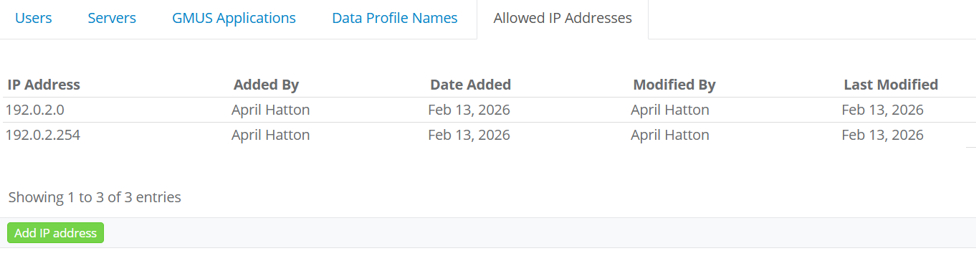
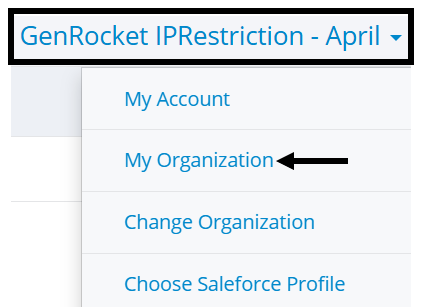
- Open the Organization Menu and select My Organization.
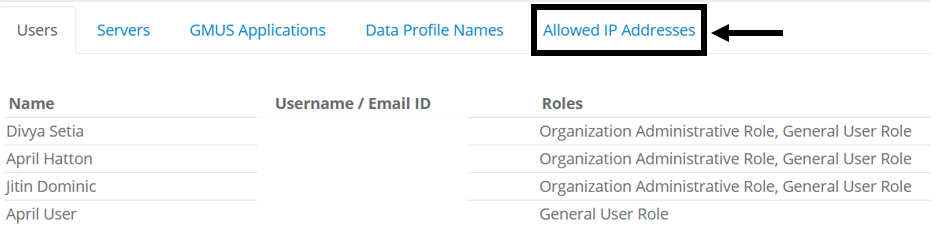
- Select the Allowed IP Addresses tab.
- Select Add IP Address.
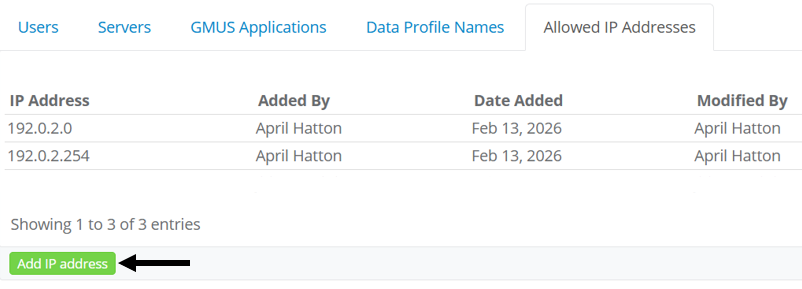
- Enter the IP Address and select Save.
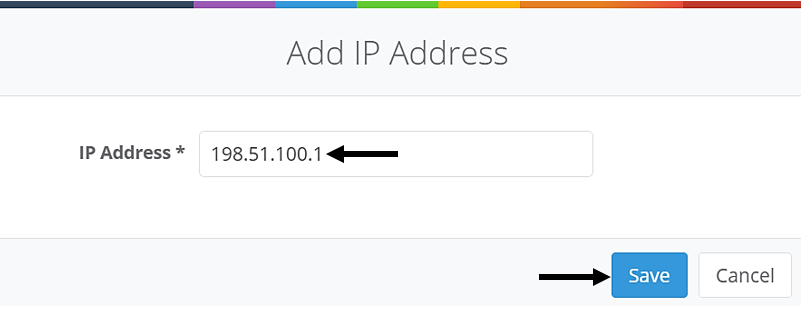
Note: Edit or remove approved IP Addresses by using the icons in the Actions column: Pencil (edit) and Trash Can (delete).
Frequently Asked Questions (FAQs)
Are both IPv4 and IPv6 addresses supported?
- Yes, both are supported.
- Yes, both are supported.
Do you support dynamic IP addresses for this feature?
- A static IP is recommended.
- Using a dynamic IP address will result in the user being locked out each time it changes.
Is there a way to add or remove multiple IP addresses at once?
- At this time, bulk actions are not available for IP addresses.
- At this time, bulk actions are not available for IP addresses.
Are there any audit logs or ways to track IP address changes?
- Anyone who is an Organization Admin can see the following for each added IP address:
- who added it
- date it was added
- who last modified it
- date it was last modified
- Please note that deletions are not tracked at this time.
- Anyone who is an Organization Admin can see the following for each added IP address:
Troubleshooting Tips
What should an Organization Admin do if a user unexpectedly gets a 403 (Forbidden) error?
- Check within the GenRocket web platform to ensure the user's allowed IP address is present.
- If it is present, instruct the user to refresh their web page.
- If the 403 (Forbidden) error persists, verify that the entered IP address is correct and have them clear their browsing history (the last hour or 24 hours).
- Reach out to our support team at support@genrocket.com if the issue persists.
What should an Organization Admin do if they cannot log in?
- An Organization Admin's ability to log in will not be restricted by this feature.
- Restricted access may be due to one of the following:
- The account is disabled on the GenRocket web platform.
- The account has been locked due to too many incorrect login attempts.
- No internet connectivity.
- Verify that the internet is available and that you can access the GenRocket home page for your organization.
- Check the message that is received when logged in to see if your account is disabled or locked.
- If disabled, reach out to someone in your company to determine why your account was disabled and have it enabled again.
- If locked, you will need to wait the specified period before trying again, and you may need to reset your password.
- If the issue persists, reach out to our support team at support@genrocket.com for additional assistance.